
WinCam PC Software is a lightweight, high-speed desktop screen recording application created by NTWind Software for Windows operating systems. Built specifically to deliver smooth video capture without draining system resources, it enables users to record desktop activity, software walkthroughs, gameplay clips, online meetings, and video tutorials. Instead of overcomplicating the recording process with bloated editing suites or confusing setup panels, it focuses on rapid screen capture paired with essential post-recording trimming tools.
Operating natively on local 86-bit and 64-bit Windows architectures, the application leverages hardware-accelerated video encoding (including NVIDIA, AMD, and Intel GPU acceleration). This design allows creators, educators, software developers, and business professionals to capture crisp high-definition video at up to 60 frames per second without experiencing frame drops or interface lag.
NTWind Software actively maintains the program, ensuring ongoing performance tuning, installer updates, and seamless operation across Windows 10 and Windows 11.
Key Features
The application incorporates a practical set of capture, audio routing, cursor highlighting, and video trimming capabilities.
Hardware-Accelerated Video Encoding The software utilizes dedicated graphics hardware encoding (NVENC, AMD VCE/AMF, and Intel Quick Sync) to process video frames in real time. Offloading encoding tasks directly to the GPU reduces CPU utilization, allowing background software or games to run smoothly while recording.
Flexible Capture Region Selection Users can capture full-screen desktop views, specific application windows, or custom rectangular screen regions. A built-in window picker allows you to snap directly to any active desktop program with a single click.
Dual Audio Input Recording The recording engine captures system sound (what you hear through your speakers) and microphone audio simultaneously. Independent volume sliders and mute toggles allow creators to balance background application sounds with live voice commentary.
Webcam Overlay and Picture-in-Picture Adding a personal facecam to tutorials or presentations is simple. The software supports webcam video overlays, allowing users to position a live camera feed anywhere on the screen with customizable box sizes and frame borders.
Interactive Cursor Effects and Highlight Animations To make instructional tutorials easier to follow, the application can render visible cursor click animations, highlight rings around the mouse pointer, and custom mouse click sound effects in real time.
Built-In Video Trimmer After completing a screen capture session, the application opens a preview window containing a built-in timeline editor. Users can quickly trim unnecessary start and end footage before exporting the final file to disk.
Your May Also Like :: Stardock Start11 PC Software
How WinCam PC Software Works
The operational workflow flows logically from capture region setup to post-recording video trimming.
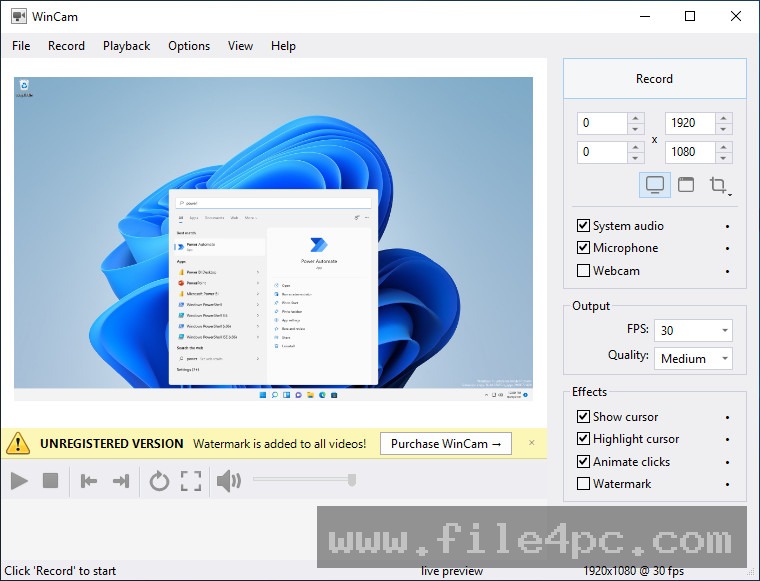
To begin, launch the application desktop window. In the main control toolbar, select your desired recording area by choosing between Full Screen, Target Window, or Custom Region.
Next, configure your input sources. Enable or disable system audio and microphone toggles, and select your preferred webcam overlay device if you want to record a picture-in-picture video feed. You can also toggle cursor highlight effects on or off depending on whether you are recording a software demo or a clean media presentation.
When ready, click the Record button or hit your designated hotkey (such as F9). The software minimizes to the system tray or displays a floating widget showing active recording time and audio level meters.
Once your recording session is finished, hit the Stop hotkey. The software immediately opens its preview and trimming interface. Here, you can play back the recorded video, drag timeline handles to clip out unwanted footage, and click Save to export a compressed MP4 video file directly to your chosen destination folder.
Benefits and Limitations
Weighing the software's functional benefits against its targeted design scope clarifies its place in screen capture workflows.
Benefits
The most prominent advantage is its lightweight footprint and swift performance. The installer file takes up less than 15 MB of disk space, and memory usage remains minimal during live recording sessions. Hardware GPU acceleration ensures high-frame-rate MP4 output without micro-stuttering. The inclusion of a built-in video trimmer eliminates the need to open secondary editing tools just to cut off empty seconds at the beginning or end of a clip. Furthermore, purchasing a license provides permanent single-user usage without recurring monthly subscriptions.
Limitations
The main boundary is that it is strictly a screen recording utility rather than a full non-linear video editing workstation. It does not support multi-track timeline editing, video transitions, animated callouts, or advanced audio filtration tools found in heavier video suites. Additionally, the software is developed exclusively for Microsoft Windows, offering no native versions for macOS or Linux environments.
What's New
NTWind Software maintains regular updates across its application lineup to ensure stability and hardware driver compatibility.
Key developments in recent software updates include:
-
Enhanced GPU hardware encoding pipelines supporting newer NVIDIA RTX and AMD Radeon graphics drivers.
-
High-DPI screen scaling improvements for multi-monitor desktop setups running at 4K resolutions.
-
Refined WASAPI audio capture loops for cleaner system sound recording.
-
Minor user interface updates designed for modern Windows 11 themes.
Installation and Setup
Setting up the application on a Windows computer involves a straightforward installation process.
Download the setup executable or portable archive directly from the official NTWind Software website. Run the setup wizard, review the software agreement, and select your target installation folder.
Upon launching the program for the first time, it operates in evaluation mode, which adds a light watermark to output videos. Entering a valid license key instantly removes all trial watermarks and unlocks unrestricted recording features.
Tips for Using WinCam PC Software
Assign distinct global hotkeys for starting, pausing, and stopping recordings. Using keyboard shortcuts prevents the application window or mouse cursor from appearing inside your finished video clips when initiating a capture pass.
Enable GPU Hardware Acceleration in the Video Settings tab before recording high-frame-rate games or 4K desktop tutorials. Choosing NVENC or Intel Quick Sync offloads compression tasks from your CPU, preserving system performance.
Test your microphone volume levels using the live audio meter before recording lengthy voiceovers. Balancing system audio against microphone gain prevents background music from drowning out your spoken commentary.
Modern Alternatives
Depending on whether you require open-source streaming software or complex video editing capabilities, several alternative screen recorders exist.
OBS Studio is a free, open-source streaming and recording suite. It offers extensive multi-source scene switching, audio mixing, and broadcast capabilities. However, its complex interface and steep learning curve make it heavier to set up for simple desktop recording tasks.
Camtasia is a commercial screen recorder and full-featured video editor. It provides rich timeline editing, callouts, quiz generation, and cursor animations. While feature-packed, it commands a significantly higher price tag and consumes substantially more system resources.
Bandicam is a popular Windows screen recorder known for high-frame-rate game recording and hardware acceleration. It serves a similar market segment, though its interface and licensing options differ from NTWind's minimalist approach.
Who Should Use WinCam PC Software?
This software is ideal for educators, software developers, customer support personnel, content creators, and business professionals who need a fast, lightweight tool to record Windows screen activity. If you need to produce software walkthroughs, capture webcam commentary, trim clips quickly, and export crisp MP4 videos without managing bloated editing suites, it delivers a practical solution.
However, creators who need advanced multi-track video editing, live internet streaming, or Mac compatibility will be better served by broader platforms like OBS Studio or Camtasia.
FAQ
Is WinCam PC Software free or paid?
The software is commercial shareware. A free trial version is available for testing, which adds a watermark to output videos until a full license key is registered.
What video format does the software export?
The application exports recorded videos directly as compressed MP4 files using H.264 or H.265 (HEVC) video codecs paired with AAC audio.
Can I record gameplay with this software?
Yes. Thanks to GPU hardware acceleration, the software can capture windowed or borderless full-screen games at up to 60 frames per second with minimal impact on game frame rates.
Does the software support 4K screen recording?
Yes. It fully supports 4K monitor resolutions, high-DPI display scaling, and multi-monitor desktop setups.
Conclusion
WinCam PC Software offers a fast, dependable solution for screen recording and quick video creation on Windows computers. By combining hardware GPU acceleration with flexible region selection, dual audio input routing, and a built-in video trimmer, it removes unnecessary friction from the recording process.
While power users seeking advanced post-production editing will still require dedicated editing suites, its lightweight footprint, zero lag performance, and straightforward interface make it an outstanding tool for everyday capture tasks. For anyone needing a simple, reliable desktop recorder to produce clear video tutorials and software demos, it provides an efficient workstation.

💬 0 Comments
✍ Leave a Comment