
Snipping Tool Installer PC Software context centers around restoring, updating, or re-installing Microsoft's official screenshot and screen recording utility across Windows 10 and Windows 11 systems. Originally introduced in Windows Vista as a simple screen-capture accessory, the application has evolved into a modern, feature-rich utility managed directly through the Microsoft Store. While legacy Windows 7 and 8 installations relied on built-in executable components, modern Windows OS deployments allow users to repair, reinstall, or update the application using standalone installer packages (MSIX bundles) or Microsoft Store repository commands.
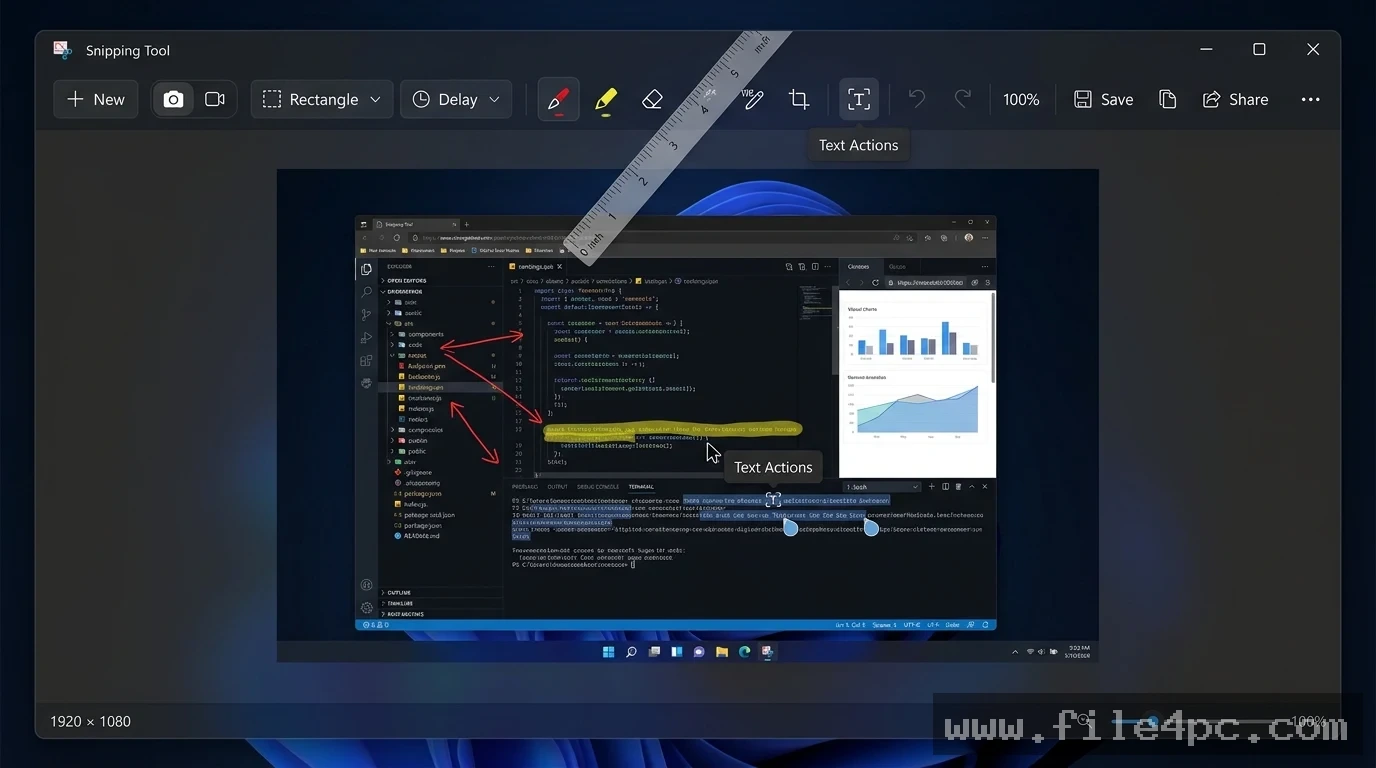
Operating natively within the Windows desktop shell, the tool enables users to capture rectangular clips, freeform drawings, active windows, or full desktop screens. Beyond static image capture, modern releases integrate screen video recording, optical character recognition (OCR) for text extraction, and automatic file saving.
Microsoft actively maintains the application across its current Windows 11 release branches, introducing regular feature updates such as video recording controls, shape drawing tools, and AI-assisted text redaction.
Key Features
The application incorporates an essential suite of screen capture, video recording, image annotation, and text extraction capabilities.
Multiple Capture Selection Modes Users can capture screen content using four distinct selection modes: Rectangular Snipping (drag a box over screen regions), Freeform Snipping (draw custom shapes around objects), Window Snipping (select an open application window), and Full-Screen Snipping (capture entire multi-monitor desktop setups).
Integrated Screen Video Recording Modern application updates add built-in screen recording functionality. Users can toggle from image mode to video mode to capture active screen areas, record microphone commentary, and include system audio during software walkthroughs or presentation demos.
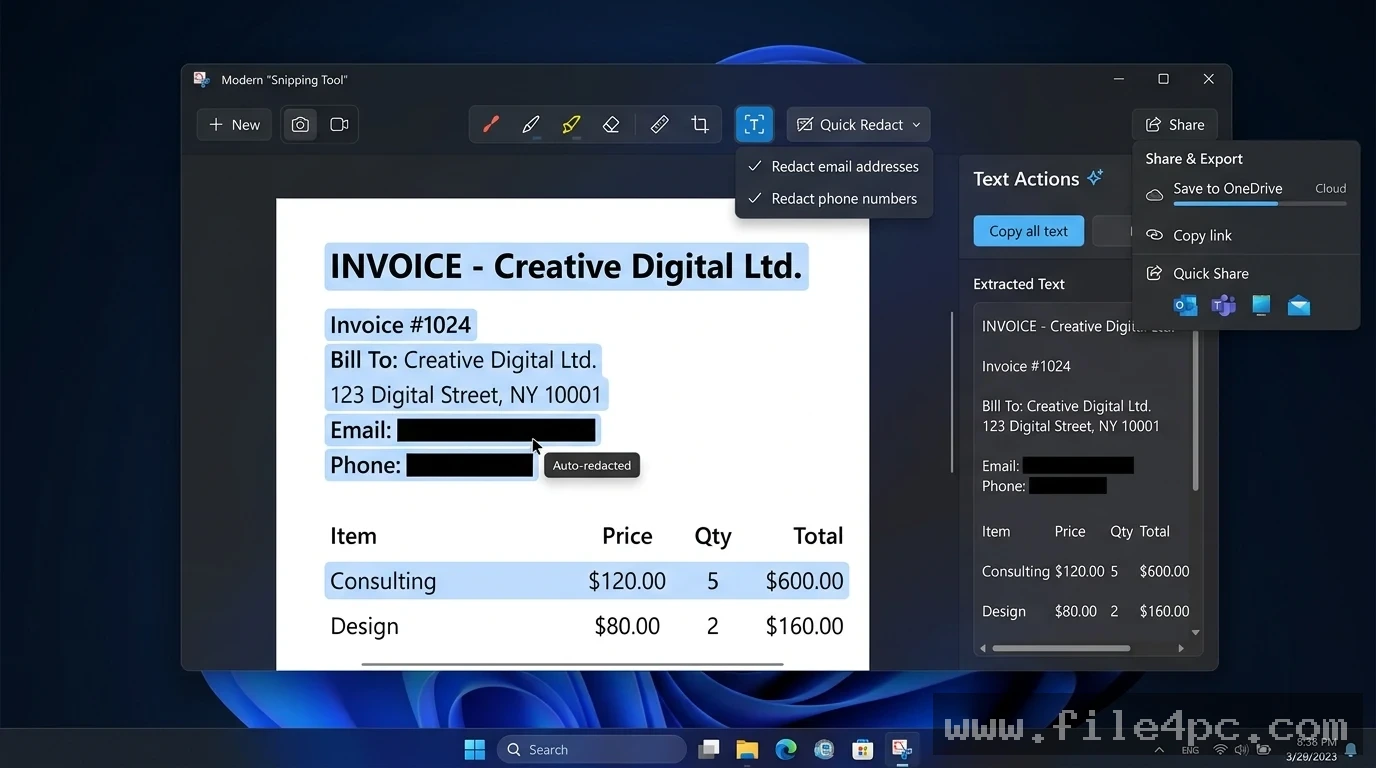
Optical Character Recognition (OCR Text Actions) With integrated Text Actions, the tool automatically scans captured images for readable text. Users can select and copy text directly from screenshots, extract error codes from system popups, or automatically redact sensitive personal information like email addresses and phone numbers.
Annotation Tools and Markups Built-in editing features allow users to draw over captured screenshots using pens, highlighters, digital rulers, protractors, and cropping tools. Recent updates also add quick geometric shape overlays like arrows, rectangles, and circles for clearer documentation.
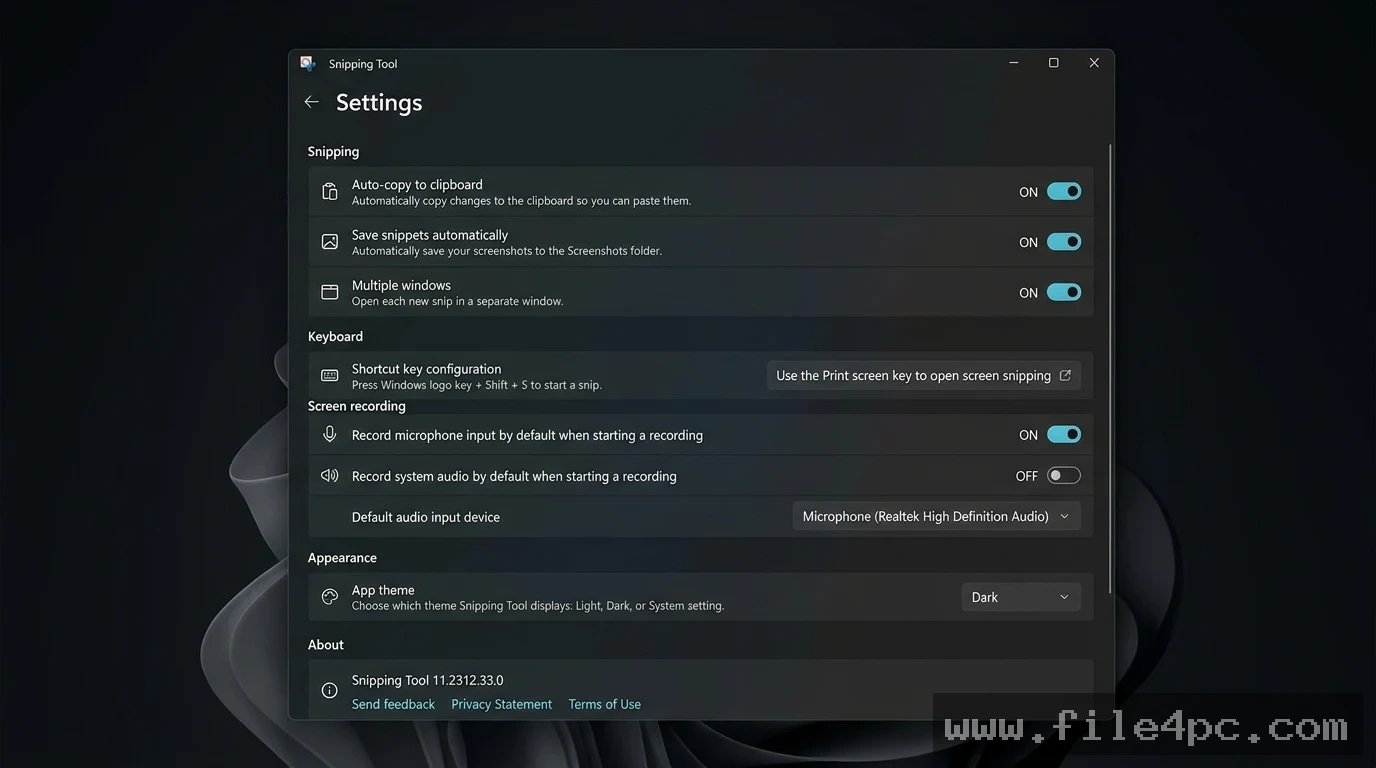
Automatic Saving and Clipboard Integration Every captured snip copies automatically to the Windows system clipboard, allowing instant pasting into emails, chat applications, or documents. The software can also automatically save captured images into a designated Screenshots folder to prevent accidental data loss.
Your May Also Like :: SimplySync Backup PC Software
How Snipping Tool Installer PC Software Works
The workflow transitions smoothly from installer deployment to daily screen capture operations.
If the application has been removed or corrupted, you initiate the process by reinstalling the package. You can open the Microsoft Store app, search for Snipping Tool, and click Install. Alternatively, IT administrators can deploy the official Microsoft.ScreenSketch AppX/MSIX installer bundle via PowerShell commands.
Once installed, launch the app using its desktop shortcut or the standard global hotkey combination: Windows Logo Key + Shift + S. Pressing this hotkey dims the screen and displays the capture bar at the top of your display.
Select your preferred capture mode (Rectangular, Freeform, Window, Full Screen, or Video Record) and draw over the target screen region. The captured content opens immediately inside the editing window, where you can apply annotations, extract text, or save the finished image directly to your local drive.
Benefits and Limitations
Weighing the tool's core functionality against technical limits clarifies its position among desktop capture tools.
Benefits
The most prominent advantage is seamless operating system integration. Being a native Microsoft application means zero performance drag, zero advertisement popups, and instant access via standard Windows keyboard shortcuts. The addition of OCR text extraction and video recording turns a basic utility into a capable productivity assistant without needing heavy third-party screen software.
Limitations
The primary restriction is that advanced video editing and cloud management features are limited compared to specialized commercial utilities. It lacks multi-track video timeline editing, scrolling webpage capture, automated cloud upload links, or advanced GIF exporting options. Furthermore, because modern builds depend on Microsoft Store package frameworks, restoring the app on severely locked-down enterprise systems may require administrative PowerShell permissions.
What's New
Microsoft continuously updates the application alongside Windows 11 feature releases, introducing functional productivity tools.
Verified features in modern application releases include:
-
Shapes Overlay Feature: Built-in drawing tools allowing users to add clean arrows, squares, circles, and line indicators directly onto screenshots.
-
Audio Recording Controls: Support for capturing system audio alongside microphone inputs during screen recording sessions.
-
Text Redaction Improvements: Automatic detection and one-click masking of sensitive numerical data, phone numbers, and email addresses inside captured images.
-
HDR Color Calibration: Improved color rendering accuracy when capturing content on high-dynamic-range (HDR) desktop monitors.
Installation and Setup
Restoring or updating the utility on a Windows PC involves simple, verified setup methods.
Method 1: Microsoft Store (Recommended)
-
Open the Microsoft Store application from your Windows Start Menu.
-
Search for Snipping Tool (published by Microsoft Corporation).
-
Click Get or Install to download and configure the latest application package automatically.
Method 2: Windows Settings Repair/Reset
-
Open Windows Settings > Apps > Installed Apps.
-
Locate Snipping Tool, click the three-dot menu, and select Advanced Options.
-
Click Repair to fix corrupted files, or click Reset to restore default app states.
Tips for Using Snipping Tool Installer PC Software
Use the Delay Capture option when trying to capture dropdown menus or hover tooltips. Setting a 3-second or 5-second delay gives you enough time to click open sub-menus before the screen freezes for capture.
Take advantage of the Windows Key + Shift + S keyboard shortcut for quick workflow integration. Mastering this shortcut bypasses opening the main application window, placing cropped screenshots directly onto your clipboard in one motion.
Enable the Auto-copy changes setting in app preferences. This ensures that any pen annotations or highlights you add to a screenshot update the clipboard copy instantly without requiring manual saving.
Modern Alternatives
Depending on whether you require scrolling captures, cloud sharing, or advanced video editing, several alternative screen capture utilities exist.
ShareX is a free, open-source screen capture and file sharing utility for Windows. It provides extensive capture modes, scrolling screen captures, automated image uploads, color pickers, and video GIF creation, though its dense interface presents a steeper learning curve.
Greenshot is a popular lightweight, open-source screenshot tool for Windows. It features an efficient image editor, customizable hotkey profiles, and direct export options to office applications and cloud image hosts.
Snagit (by TechSmith) is a commercial screenshot and video recording suite designed for technical writers, trainers, and corporate teams. It offers advanced callout graphics, step-by-step documentation templates, and robust video editing capabilities, though it requires a paid commercial license.
Who Should Use Snipping Tool Installer PC Software?
This software is ideal for students, office workers, customer support representatives, and general Windows users who need a clean, fast, and built-in tool for taking screenshots and short screen recordings. If you want a zero-cost capture utility that integrates with Windows keyboard shortcuts and includes OCR text extraction out of the box, it provides a practical desktop workspace.
However, power users who require scrolling webpage captures, advanced video editing, or automated cloud FTP uploads will be better served by comprehensive tools like ShareX or Snagit.
FAQ
Is Snipping Tool Installer PC Software free?
Yes. The application is a free native component of Microsoft Windows 10 and Windows 11, downloadable and updated at zero cost through the Microsoft Store.
What happened to Snip & Sketch?
Microsoft previously introduced Snip & Sketch to replace the classic Snipping Tool. However, in Windows 11, Microsoft merged the features of both applications into a single, modernized tool under the original Snipping Tool name.
Can the tool record video with audio?
Yes. Recent updates allow users to record screen videos with options to capture both system audio and microphone inputs.
How do I fix the tool if it stops opening?
Open Windows Settings > Apps > Installed Apps > Snipping Tool > Advanced Options. Perform a Repair or Reset. If issues persist, reinstall the app from the Microsoft Store.
Conclusion
Snipping Tool Installer PC Software context reflects the ongoing evolution of Microsoft's essential desktop capture accessory into a modern, multi-purpose screen utility. By combining traditional image capture with screen recording, OCR text extraction, and markup annotation tools, it addresses daily communication and documentation needs without requiring third-party downloads.
While advanced power users may still rely on specialized tools like ShareX for complex workflow automation, its zero-cost availability, seamless keyboard integration, and lightweight footprint make it a fundamental component of the Windows desktop experience. For anyone needing to capture, annotate, and share screen content quickly, it provides a reliable, accessible platform.
💬 0 Comments
✍ Leave a Comment