
Smart Clipboard PC Software is a productivity-oriented desktop utility designed to expand the basic copy-and-paste capabilities of Microsoft Windows. Standard operating system clipboards operate under a single-item limitation: copying new text, an image, or a file path automatically overwrites whatever was copied previously. A smart clipboard manager solves this limitation by recording a continuous local history of copied snippets, allowing users to store, organize, search, and recall multiple copied items across active application workflows.
Operating quietly in the background with minimal system resource consumption, the application intercepts copy commands (Ctrl+C) and catalogues the payload into a structured list or popup menu. It serves writers, software developers, customer support specialists, researchers, and office workers who handle repetitive text entries, code snippets, or cross-application data transfers throughout the workday.
While multiple third-party developers publish utilities under the "Smart Clipboard" name across software repositories, the underlying software category is actively maintained through standalone desktop executables and modern open-source clipboard management frameworks compatible with 32-bit and 64-bit Windows architectures.
Key Features
The application provides a practical array of clipboard history tracking, text formatting, hotkey activation, and snippet organization features.
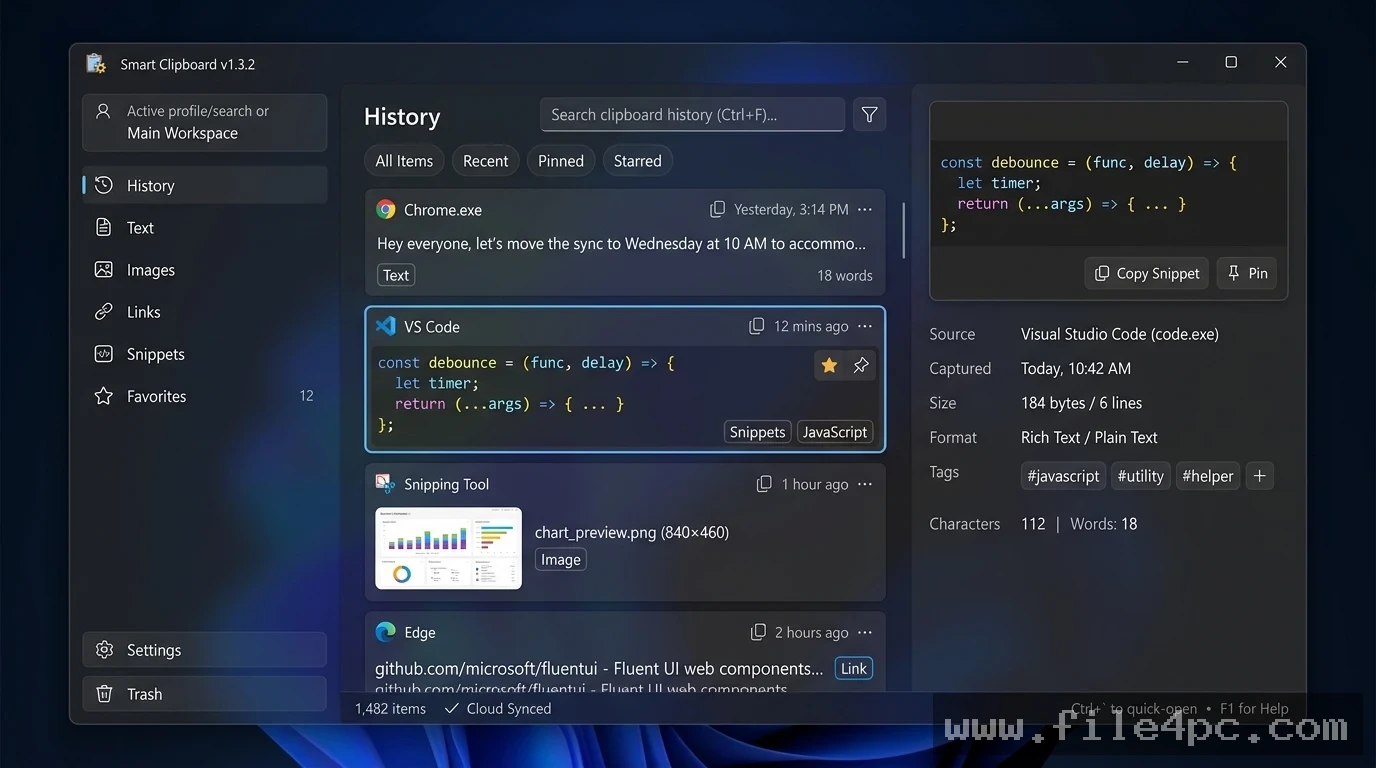
Multi-Item Clipboard History The core function of the program is capturing sequential copy operations. Instead of retaining only the last copied item, the software saves dozens or hundreds of text strings, URLs, formatted passages, and image clips into a searchable timeline.
Hotkey Activation and Popup Menu Users can invoke the clipboard interface instantly anywhere in Windows using customizable global keyboard shortcuts (such as Ctrl+Shift+V or double-tapping a specific key). A compact floating window appears next to your active cursor, allowing you to select and paste items without leaving your current workspace.
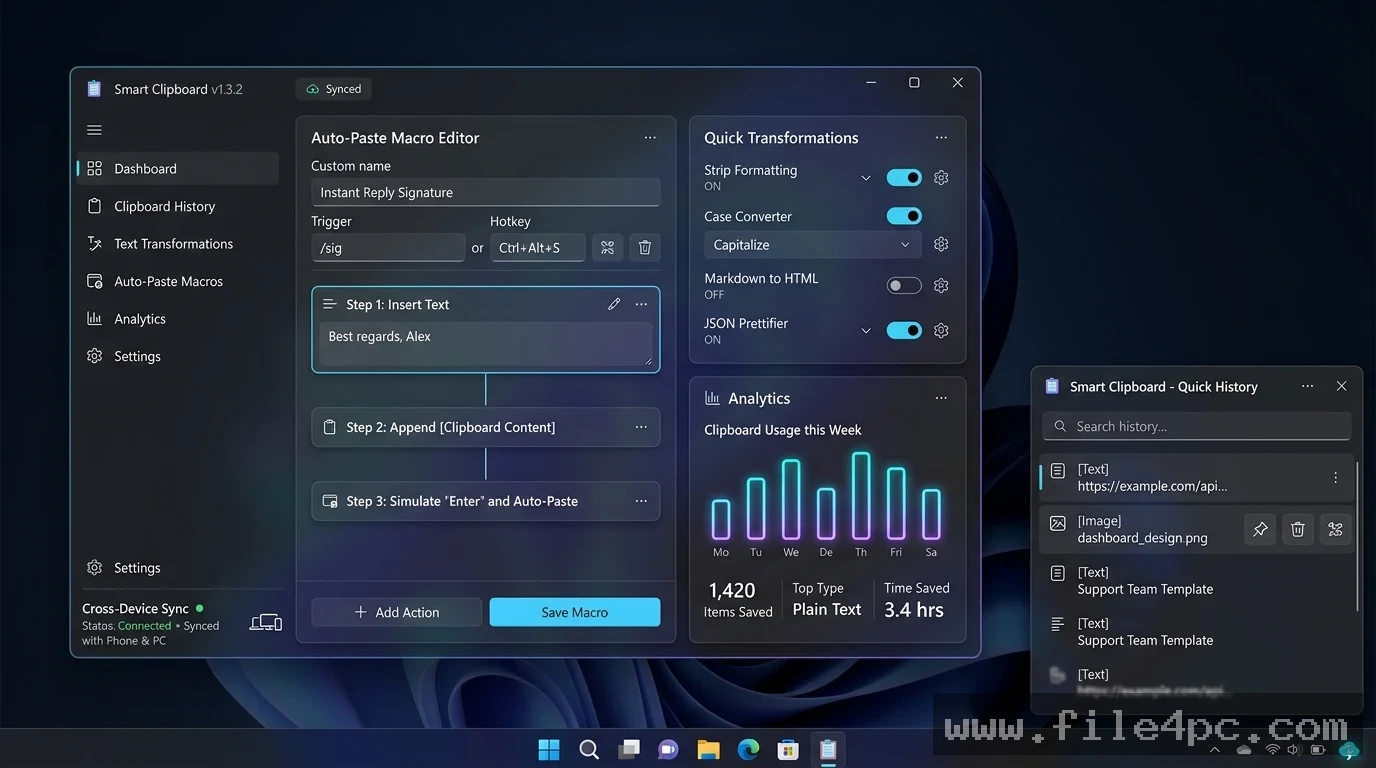
Pinned Snippets and Quick Templates For frequently used text blocks such as email sign-offs, standardized responses, code templates, or shipping addresses, the application allows users to pin items. Pinned snippets remain permanently at the top of the list, preventing them from aging out as new items are copied.
Plain Text Stripping and Formatting Options Copying text from web pages or formatted documents often transfers unwanted font styles, line breaks, colors, and hyperlinking. The utility includes one-click formatting tools to paste clips as unformatted plain text, clean up extra spaces, or convert text cases (UPPERCASE, lowercase, Title Case) on the fly.
Your May Also Like :: SimplySync Backup PC Software
Local Data Search and Filtering To locate previously copied information quickly, the interface includes a live search filter. Typing a keyword immediately filters stored history entries, enabling fast retrieval of links, phone numbers, or code blocks copied hours earlier.
How Smart Clipboard PC Software Works
The operational workflow transitions seamlessly from background copy monitoring to active text insertion.
To begin, launch the application desktop window or let it run automatically upon Windows startup. The program initializes a lightweight background listener that monitors standard system copy commands.
Next, copy text, links, or images as you normally would using Ctrl+C or right-click copy menus. Each time a copy operation occurs, the software registers the entry into its local data store without interrupting your primary application.
When you need to paste an older item, press your configured global hotkey. The floating menu pops up over your active window. Use your keyboard arrow keys or mouse to highlight your desired snippet, press Enter, and the software automatically inserts the chosen text into your active document or form field.
Privacy and Security Warning: Because clipboard managers continuously log system copy events, sensitive information like passwords, API keys, and credit card numbers copied during daily web browsing will be saved in your local history unless excluded. Configure private app exclusion filters or clear sensitive history entries regularly.
Benefits and Limitations
Weighing the functional advantages of a clipboard utility against its privacy boundaries helps determine if it fits your daily typing workflow.
Benefits
The primary advantage is significant productivity enhancement. Eliminating the need to switch repeatedly between browser tabs or document windows to copy single lines of text saves time during heavy data entry. Pinned templates streamline repetitive email writing, while automatic formatting controls prevent broken paste formatting in word processors. Furthermore, because history data is stored locally on host storage drives, user data remains private and accessible offline.
Limitations
The primary operational constraint relates to sensitive credential security. If an unencrypted clipboard utility captures master passwords copied from password managers, anyone with access to your unlocked desktop can view those plain-text entries in the clipboard history list. Additionally, storing large uncompressed image clips in clipboard memory over extended sessions can increase background RAM usage if history limits are not set.
What's New
Development across desktop clipboard management utilities focuses on security controls, high-DPI scaling, and OS shell integration.
Key verified developments across modern clipboard software include:
-
Password Manager Auto-Exclusion: Enhanced rules that automatically detect and ignore data copied from password managers like Bitwarden, 1Password, or KeePass.
-
Modern Windows 11 Visual Styling: Refined floating window interfaces that match native Windows 11 dark and light desktop themes.
-
Improved High-DPI Scaling: Crisp icon and text rendering on multi-monitor setups with high-resolution 4K displays.
-
Encrypted History Database Options: Storage optimizations that encrypt local clipboard history files to protect cached text from unauthorized local access.
Installation and Setup
Getting a clipboard manager ready on a Windows machine involves a minimal setup process.
-
Download the official setup executable or portable archive from a verified publisher site or software directory.
-
Run the setup installer wizard, select your preferred interface language, and complete the installation.
-
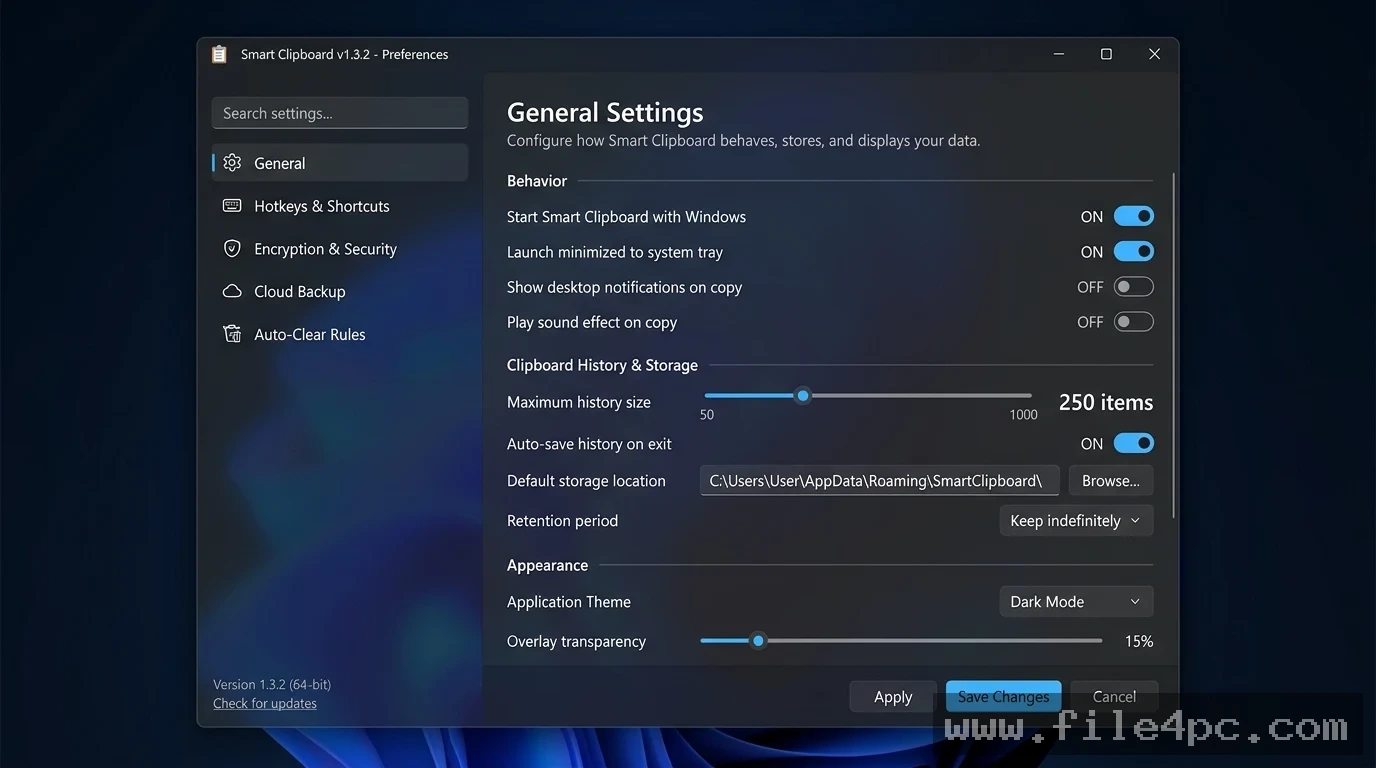
Upon launching the program, open the Preferences menu to set your preferred global paste hotkey.
-
Enable the option to launch automatically with Windows if you want continuous background monitoring.
Setup Tip: If available, select the Portable Edition package. Portable packages can be extracted to local folders or USB flash drives without writing secondary registry entries or installing background Windows services.
Tips for Using Smart Clipboard PC Software
Set up a dedicated hotkey for Paste as Plain Text. Assigning a shortcut like Ctrl+Shift+V to strip formatting automatically saves time when pasting text from web pages into formatted Word documents or email drafts.
Configure maximum history limits in the settings menu. Capping the total stored clips (such as keeping the last 100 entries) prevents your local database from growing unnecessarily large over months of continuous use.
Exclude password managers and banking websites in your privacy settings. Preventing the software from capturing data from specific sensitive applications ensures your passwords and personal financial details remain off the log history.
Modern Alternatives
Depending on whether you prefer built-in operating system tools, open-source utilities, or advanced macro managers, several alternatives exist.
Native Windows Clipboard History (Win + V) is a built-in tool included in Windows 10 and Windows 11. Pressing the Windows Key + V shortcut opens a simple floating clipboard menu that stores recent text and image clips, offers pinned items, and syncs across Microsoft devices without requiring third-party downloads.
Ditto Clipboard Manager is a popular, free, and open-source clipboard manager for Windows. It features extensive hotkey mapping, network clipboard sharing between local PCs, encrypted database options, and multi-clip pasting capabilities.
CopyQ is an advanced open-source clipboard manager featuring scriptable actions, tabbed categories, custom regular-expression filtering, and cross-platform support across Windows, macOS, and Linux.
Who Should Use Smart Clipboard PC Software?
This application is ideal for copywriters, researchers, software developers, administrative assistants, and data entry clerks who handle multi-item copy operations daily. If you frequently need to paste standardized response templates, manage multiple text strings, or strip annoying web formatting from copied passages, a dedicated clipboard manager provides an efficient workstation tool.
However, casual computer users who only copy occasional single links or who are satisfied with the native Windows Clipboard History (Win + V) feature do not need to install secondary third-party clipboard utilities.
FAQ
Is Smart Clipboard PC Software free to use?
Most third-party clipboard utilities of this type are available as freeware or open-source software, with select advanced versions offering optional paid licenses for commercial multi-device sync features.
Does native Windows 11 already have a built-in clipboard manager?
Yes. Windows 10 and Windows 11 include a built-in clipboard history tool that can be opened anytime by pressing the Windows Key + V on your keyboard.
Will restarting my PC clear my saved clipboard history?
Standard unpinned items are typically cleared when your PC restarts, but pinned snippets and permanent text templates are saved to your disk drive and remain available across system reboots.
Is it safe to copy passwords while using a clipboard manager?
It depends on your settings. Standard clipboard software logs all copied text into local memory. To maintain account security, clear your history after copying sensitive passwords or configure application exclusion rules to skip password managers.
Conclusion
Smart Clipboard PC Software provides a practical solution to one of the desktop operating system's oldest limitations: the single-item copy constraint. By maintaining a structured, searchable history of copied text, image clips, and web links alongside quick-paste templates, it streamlines cross-application workflows and eliminates repetitive copy-pasting loops.
While users must manage privacy settings around sensitive passwords, the productivity gains offered by global hotkeys, plain-text stripping, and searchable history make it a valuable utility. For anyone looking to speed up daily data entry and take control of their desktop clipboard, it delivers a functional, time-saving workspace.
💬 0 Comments
✍ Leave a Comment