MiniTool Power Data Recovery Personal PC Software gives Windows users an accessible, read-only data extraction tool designed to retrieve deleted files, restore corrupted partitions, and salvage inaccessible media from local and external storage drives. Losing critical documents, family photos, or project files due to accidental deletion, partition table damage, or drive formatting can be a stressful experience. By bypassing standard Windows file system pointers and performing direct sector-by-sector drive scans, this recovery utility reconstructs lost file structures while keeping original drive data completely untouched.
Overview
MiniTool Power Data Recovery Personal PC Software is a dedicated file recovery application developed by MiniTool Software Limited. Built specifically for Microsoft Windows environments, it addresses a wide range of logical data loss scenarios, including emptied Recycle Bins, RAW file system errors, virus infections, formatted drives, and lost partition tables.
MiniTool actively maintains the software across its version 13.x release series. The Personal edition represents the commercial tier designed for individual home users, offering unlimited data recovery capacity alongside advanced diagnostic features. It targets home users, students, content creators, and remote professionals who require an uncomplicated, wizard-guided tool to rescue lost files without paying expensive laboratory recovery fees.
Key Features
The Personal edition incorporates several specialized scanning modes and file management controls engineered to streamline file restoration.
Your May Also Like :: gSyncit for Microsoft Outlook PC Software
Deep Sector-by-Sector Scan Engine
The core recovery engine parses physical storage media below the file system layer. When operating system file tables (like MFT or FAT) become corrupted or erased, the Deep Scan module analyzes raw file headers, signature structures, and data clusters directly to reconstruct over 2,000 distinct file types, including Microsoft Office documents, high-resolution RAW images, and video archives.
Specific Location Recovery
Scanning an entire multi-terabyte drive for a single lost document can take hours. The software provides targeted scan modules for specific locations, such as the Desktop, the Recycle Bin, or custom user folders. This feature restricts the scan scope, delivering diagnostic results in minutes.
Built-In File Preview Module
To ensure that recovered files are intact before saving them, the application includes a pre-recovery preview window. Users can inspect text files, PDF manuals, audio tracks, and graphic formats directly within the software interface, confirming visual clarity and file integrity before allocating storage space.
Advanced Result Filtering and Search
After completing a scan, the software organizes thousands of detected files into structured tree views. Users can utilize advanced filter rules to sort results by file extension, date modified, file size range, or file creation status (such as deleted, lost, or existing files), eliminating the need to browse through irrelevant system logs.
Unallocated Space and Lost Partition Recovery
Accidentally deleting a disk partition removes the drive letter from Windows File Explorer. The partition recovery module scans unallocated drive space to identify lost partition boundaries, extracting files from missing FAT, NTFS, exFAT, and HFS+ volumes seamlessly.
How MiniTool Power Data Recovery Personal PC Software Works
The software uses a non-destructive, read-only scanning methodology that reads sector data from target drives without writing new information to the source media.
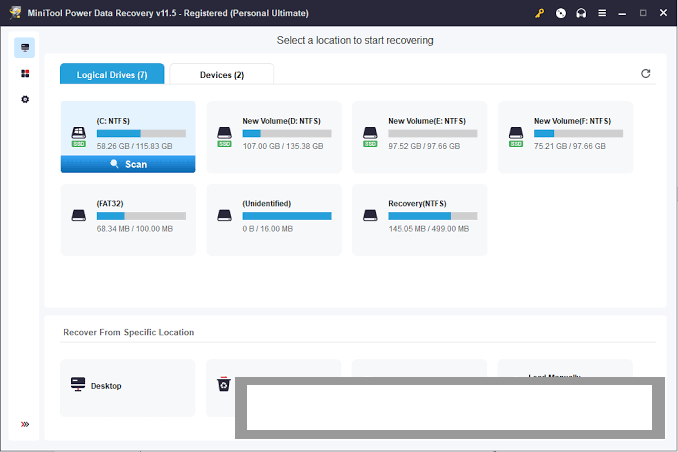
First, you launch the application on your Windows workstation. The primary dashboard displays available logical drives, connected USB flash drives, memory cards, and unallocated disk space.
Second, select the specific drive, partition, or target folder (such as the Recycle Bin) and click the Scan button. The software initiates a quick index pass followed by a thorough deep scan, displaying discovered files in real time as scanning progresses.
Third, filter or search the scan results to locate your target items. Use the Preview button to verify file content, check the selection boxes next to your missing files, click Save, and choose a secondary destination drive to complete the recovery process.
Never save recovered files back onto the same physical drive you are scanning. Saving files to the source drive overwrites remaining unrecovered data clusters permanently, destroying any chance of retrieving additional lost files.
Benefits and Limitations
Weighing the software's functional strengths against system restrictions helps clarify its everyday utility.
Benefits
-
Non-Destructive Read-Only Operation: Sector scanning processes do not modify, overwrite, or alter existing source drive data.
-
Broad File System and Device Compatibility: Supports NTFS, FAT12, FAT16, FAT32, exFAT, and HFS+ file systems across HDDs, SSDs, USB drives, and SD cards.
-
Time-Saving Target Scans: Desktop, Recycle Bin, and folder-specific scan shortcuts allow fast file retrieval without long full-drive wait times.
-
Unlimited Recovery in Personal Tier: Unlike the free version's 1GB limit, the Personal edition permits unrestricted data extraction volumes.
Limitations
-
Cannot Repair Physically Damaged Hardware: Logical data recovery software cannot retrieve files from drives with clicking read/write heads, dead PCB boards, or physical platter destruction.
-
TRIM Limitation on Solid-State Drives: Modern SSDs running active TRIM commands wipe deleted data blocks immediately, which reduces recovery success rates on formatted solid-state media compared to traditional mechanical hard drives.
What's New
MiniTool maintains an active release schedule across its version 13.x software line, regularly updating data extraction algorithms and device compatibility.
Recent build updates focus on refining search filter response times, improving RAW image preview support for modern digital cameras, optimizing memory consumption during multi-terabyte drive scans, and enhancing full compatibility across Windows 11 releases and Windows Server 2025 builds.
Installation and Setup
Acquire the official installation package directly from MiniTool distribution channels or reputable software repositories.
Run the installer wizard on your PC. To protect lost data, install the application on a separate drive partition (such as Drive D: or an external USB stick) rather than the partition containing the lost files (usually C:).
Launch the software upon installation. Enter your Personal license activation key in the registration window to unlock unlimited file recovery capacity and remove trial restrictions.
Tips for Using MiniTool Power Data Recovery Personal PC Software
-
Stop Using the Target Drive Immediately: As soon as file loss occurs, stop writing new data, downloading files, or installing software on that drive to prevent data overwriting.
-
Use the Specific Folder Scan First: If you accidentally deleted a file from a known location like the Downloads or Pictures folder, scan only that directory first to save time.
-
Export Scan Results for Later Use: If you are scanning a large multi-terabyte drive, save your scan result session file so you can resume file selection later without re-scanning the entire disk.
-
Check RAW Files for Unnamed Items: If file system corruption removes original file names, search under the "RAW Files" or "Type" folder category where files are grouped cleanly by extension.
Modern Alternatives
-
EaseUS Data Recovery Wizard: A popular commercial file recovery tool featuring a polished user interface, deep sector scanning, and automated media repair options.
-
Recuva: A lightweight, budget-friendly file undelete utility developed by CCleaner, ideal for basic file recovery from Recycle Bins and USB flash drives.
-
Disk Drill: A modern data recovery application known for its visual drive health monitoring, partition recovery tools, and broad preview support.
Who Should Use MiniTool Power Data Recovery Personal PC Software?
This application is well-suited for home PC owners, students, photographers, and office workers who need a reliable, self-service tool to retrieve lost files from storage drives. If you accidentally formatted a camera SD card, emptied your Recycle Bin, or encountered a RAW external hard drive error, it offers a straightforward path to restore your media.
Technicians or corporate IT departments requiring commercial multi-PC deployment rights, client service licensing, or remote network recovery should consider the Business or Technician license editions rather than the Personal tier.
FAQ
Is MiniTool Power Data Recovery Personal PC Software free?
The software is available as a free download that allows users to scan drives, preview files, and recover up to 1GB of data for free. Unlocking unlimited data recovery requires activating the Personal license.
Can the software recover files from a formatted USB drive?
Yes. The Deep Scan engine analyzes raw data signatures across formatted USB drives, SD cards, and external hard drives to reconstruct missing files.
How long does a full disk scan take?
Scan times depend on drive capacity, connection interface, and disk health. Scanning a small folder or Recycle Bin takes seconds, while deep scanning a 2TB mechanical drive may take several hours.
Does the software work on Windows 11?
Yes. The current release branch fully supports 64-bit Windows 11, Windows 10, Windows 8.1, and Windows 7 operating systems.
Can I recover data if my computer fails to boot?
While the standard Personal installer runs inside Windows, higher license tiers (such as Personal Ultimate) include a WinPE Bootable Builder to create a bootable USB rescue disk for unbootable PCs.
Conclusion
Losing essential files to accidental deletion or file system errors does not have to result in permanent data loss. MiniTool Power Data Recovery Personal PC Software provides a dependable, non-destructive safety net by combining deep sector scanning, target location shortcuts, and real-time file previews within an easy-to-use desktop application.
While physical drive failures still require professional hardware intervention, logical data loss scenarios can be resolved at home. Halting drive usage immediately upon file deletion and saving recovered files to a secondary disk ensures the highest chances of successful file restoration across all your digital media.


💬 0 Comments
✍ Leave a Comment