
gSyncit for Microsoft Outlook PC Software serves as a specialized bridging tool for users who struggle to keep their desktop software aligned with personal web services. Managing multiple schedules, contacts, and task lists across different platforms often leads to missed appointments and duplicate entries. By integrating directly into your local email client, this add-in ensures your essential daily data flows smoothly between desktop and mobile environments without relying on complex server configurations.
Overview
gSyncit for Microsoft Outlook PC Software is a specialized Microsoft Outlook add-in developed by Fieldston Software. Its core purpose is to bridge the gap between desktop Microsoft Outlook and external cloud ecosystems by syncing calendars, contacts, tasks, and notes across multiple online platforms. Rather than relying on cloud-based email hosting or native Exchange integrations, this utility installs directly into your local PC environment to automate background data matching between desktop Outlook and services like Google, iCloud, Todoist, and generic CalDAV/CardDAV servers.
Fieldston Software maintains active development for the add-in. Operating within its v5 release line, the tool regularly receives updates to accommodate changes in third-party cloud APIs and newer versions of Microsoft Office. It targets professionals, remote workers, and system administrators who rely heavily on desktop Outlook for their daily workflow but need their schedule, contacts, and task lists accessible on personal mobile devices or third-party web interfaces.
Key Features
The add-in offers focused sync management tools designed to keep local Microsoft Outlook folders synchronized with external web accounts.
Multi-Service Synchronization
This feature allows you to link Outlook with multiple online platforms simultaneously. You can sync Outlook calendars with Google Calendar, manage contact lists against Google People or CardDAV servers, and align tasks with services like Todoist or Toodledo. It eliminates the need to maintain separate add-ins for different cloud providers.
Flexible Directional Sync Rules
Users can set up one-way or two-way synchronization workflows for each individual item type. For example, you can configure Google Calendar to push events two-way with Outlook, while keeping contacts as a strict one-way export from Outlook to your phone's cloud account. This granularity helps prevent unwanted accidental edits across platforms.
Category and Color Mapping
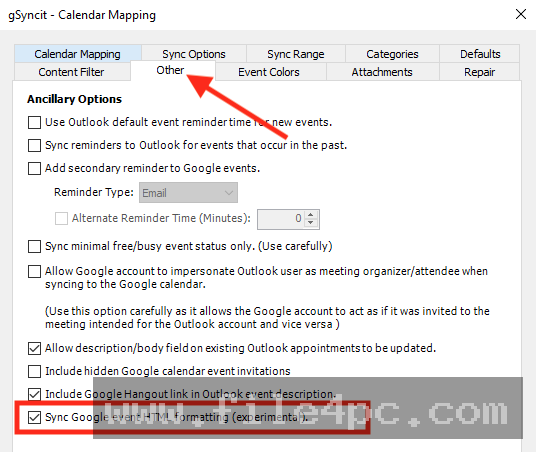
Organizing personal and work items often relies on color coding. The software matches Microsoft Outlook categories with event colors in supported web calendars like Google Calendar. Color definitions transfer along with event details, preserving your visual organizational system across both platforms.
Advanced Filtering System
Instead of forcing a global sync of your entire PST or OST database, the software lets you filter synchronization targets using Outlook categories or specific keywords. You can configure a sync rule to process only calendar events marked under a "Client Work" category while ignoring personal medical appointments or internal draft notes.
Built-In Duplicate Removal Tool
Syncing across multiple cloud accounts can occasionally generate redundant records. The software includes an integrated duplicate management wizard. It scans specified Outlook folders for duplicate contacts, appointments, or task entries, allowing you to merge or remove duplicate items safely.
Your May Also Like :: Gillmeister Automatic PDF Processor PC Software
How gSyncit for Microsoft Outlook PC Software Works
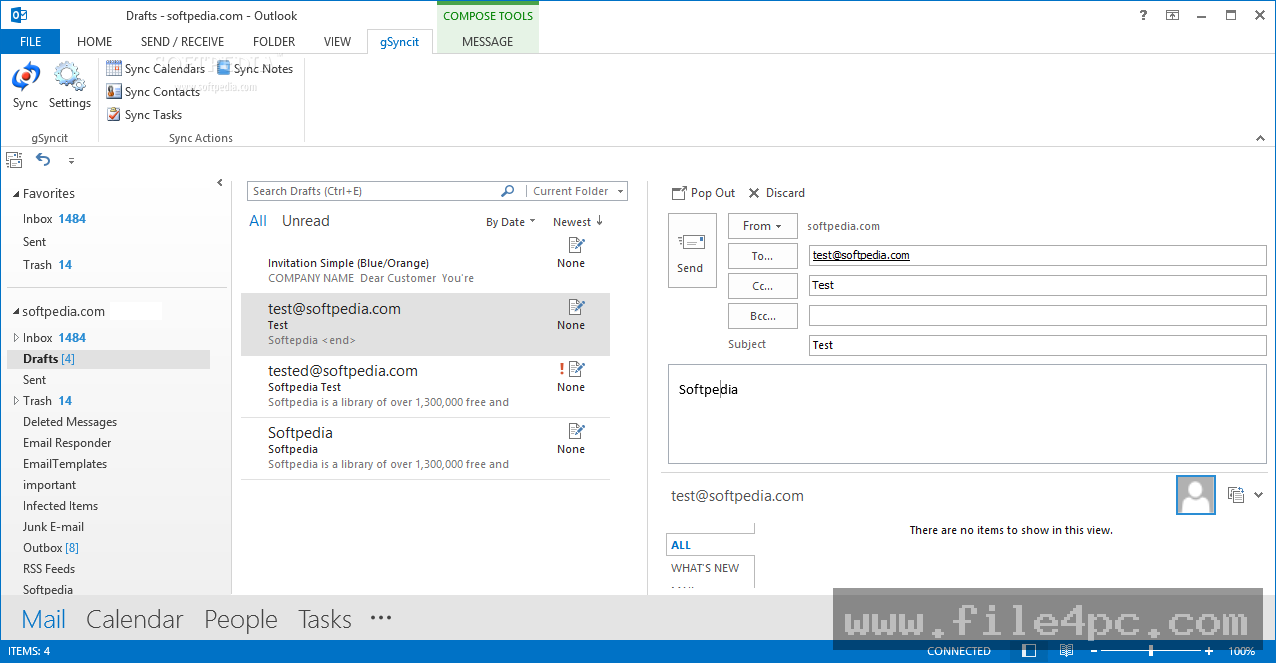
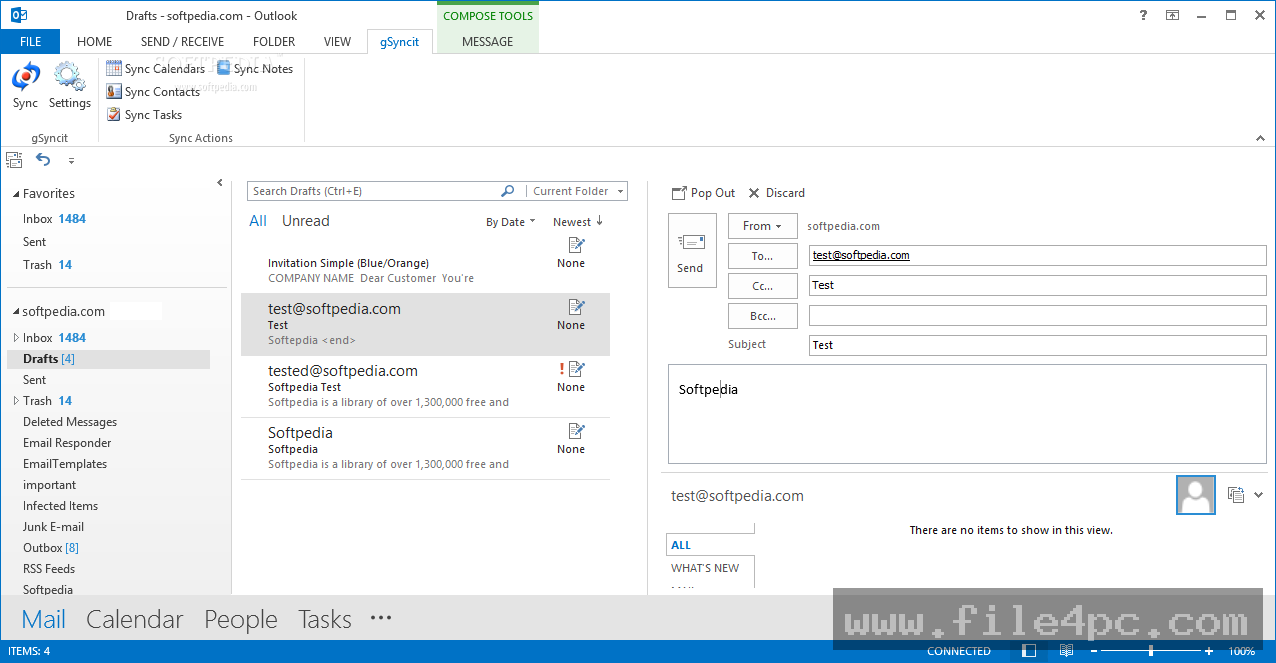
The add-in functions as an integrated toolbar or ribbon tab inside the desktop Microsoft Outlook application.
First, you install the add-in on your Windows PC, ensuring the bit version (32-bit or 64-bit) matches your installed version of Microsoft Outlook. Once installed, a dedicated tab appears within Outlook's top ribbon menu.
Second, you open the settings panel to create a new sync mapping. You select the target Outlook folder (such as your main Calendar or a secondary Contacts folder) and choose the external service you want to pair it with (such as Google, iCloud, or a CalDAV endpoint). The add-in prompts you to authenticate directly with the service provider using OAuth, keeping your password secure.
Third, you configure the sync options. You select the sync direction (one-way or two-way), set schedule intervals, and apply any category or keyword filters. Once saved, you can click the manual sync button or let the program run automatically in the background based on your configured timer or on Outlook startup/shutdown.
Review your configuration settings carefully when initializing a two-way sync for the first time. Mapping an empty online account to an active Outlook folder with aggressive deletion permissions enabled can clear local data if the sync direction is misconfigured. Always create a backup of your Outlook PST file before performing initial bulk synchronizations.
Benefits and Limitations
Weighing the functional benefits against system constraints provides a clear picture of how the software performs in everyday workflows.
Benefits
-
Broad Platform Support: It consolidates synchronization for Google, iCloud, AOL, Yahoo, Todoist, Toodledo, and generic CalDAV/CardDAV protocols into a single utility.
-
Deep Outlook Ribbon Integration: The interface resides directly within Outlook, avoiding the need to run an unfamiliar standalone desktop application.
-
Granular Control: Individual mapping rules for specific folders, categories, and sync frequencies give users full authority over their data movement.
-
Multiple Account Support: You can link multiple accounts from the same service (such as two distinct Google Calendar accounts) to different folders in one Outlook profile.
Limitations
-
Desktop Outlook Dependency: The software functions solely as an add-in for the classic desktop version of Microsoft Outlook on Windows. It does not run on macOS or within web browser versions of Outlook.
-
Bit-Matching Requirement: You must carefully install the correct 32-bit or 64-bit version matching your Office installation architecture. Mismatches prevent the add-in from loading correctly.
-
Trial Limits: The unregistered evaluation version restricts synchronization to a limited number of records per folder and displays trial notices, requiring a license purchase for full operational use.
What's New
Fieldston Software maintains the v5 series with regular maintenance patches aimed at updating third-party API connectivity and resolving system bugs.
Recent v5 releases in late 2026 focus on API compliance, performance updates, and modern build environment adjustments. The software migrated project dependencies to updated Microsoft Visual Studio build tooling. Key service adjustments include updating the Todoist synchronization engine to support current API specifications, restoring CardDAV/CalDAV compatibility with OX App Cloud servers, and refining time zone translation logic for CalDAV calendar events affected by daylight savings changes.
Installation and Setup
Acquire the setup file directly from official developer distribution platforms to ensure you receive an unmodified installer free of bundled third-party applications. Check whether your installed Microsoft Outlook application is 32-bit or 64-bit by opening Outlook and checking the Account or Help menu. Download the matching installer bit version.
Close Microsoft Outlook completely before starting the installation. Run the setup file, follow the wizard instructions, and grant the required permissions for the add-in to integrate with Office components.
Reopen Microsoft Outlook. Look for the new tab on the ribbon menu. Open the configuration window, authorize your cloud accounts, and test your first sync configuration on a secondary test calendar or contact list before enabling automated background sync across your main databases.
Tips for Using gSyncit for Microsoft Outlook PC Software
-
Check Outlook Bit Architecture: Always confirm whether your Office setup uses 32-bit or 64-bit architecture. Installing a 64-bit version of the add-in on a 32-bit Office installation will cause loading errors.
-
Utilize Category Filters for Clean Calendars: Assign a specific category (such as "Sync") to Outlook events you want exported to mobile devices. Configure your sync rule to process only that category to keep work and personal schedules separated.
-
Leverage the Duplicate Wizard: Run the built-in duplicate removal utility periodically, especially after setting up new two-way sync pairs, to keep your folders clean.
-
Adjust Auto-Sync Frequency: Avoid setting automatic synchronization intervals too low (e.g., every 1 minute). Rapid API queries can trigger rate-limiting throttles from cloud providers like Google or iCloud. Setting sync intervals to 15 or 30 minutes balances data accuracy with connection stability.
Modern Alternatives
-
CalDav Synchronizer: A popular open-source Outlook add-in focused primarily on CalDAV and CardDAV synchronization. It provides free, robust calendar and contact mapping for self-hosted servers or services like Nextcloud, but lacks native support for specialized task services like Todoist.
-
AkrutoSync: A standalone Windows utility that synchronizes Outlook data directly with mobile devices over local Wi-Fi or cellular networks without routing information through public cloud servers.
-
Native Exchange / Microsoft 365 Sync: Users who host their email on Microsoft 365 or Exchange services can sync contacts, calendars, and tasks natively to mobile devices using Microsoft Outlook apps without needing third-party synchronization utilities.
Who Should Use gSyncit for Microsoft Outlook PC Software?
This application is ideal for business professionals, independent contractors, and IT managers who use desktop Microsoft Outlook as their central personal information manager but rely on non-Exchange cloud services on their mobile devices. If you manage personal schedules in Google Calendar or Apple iCloud while maintaining a desktop Outlook profile at work, this tool connects those environments effectively.
If your organization uses a full Microsoft 365 or Exchange cloud environment across all devices, native account sync handles data replication automatically, making a specialized synchronization add-in unnecessary.
FAQ
Does the software work with the new web-based Outlook for Windows?
No. The add-in requires the classic desktop version of Microsoft Outlook installed on a Windows PC. Web-based client interfaces do not support traditional COM add-ins.
Can I sync multiple Google calendars with one Outlook calendar?
Yes. You can create multiple synchronization mappings within the settings menu, allowing you to link several distinct Google accounts or sub-calendars to your Outlook folders.
Is a single license valid for multiple PCs?
Licensing is applied per machine. If you run desktop Outlook on both a desktop PC and a laptop, you will need a separate license key for each computer.
Does the add-in store my cloud account passwords?
The software utilizes OAuth 2.0 authentication for supported services like Google and iCloud. This connects directly through the service provider's login system, granting access tokens without storing your plain-text password.
Can I run synchronizations automatically in the background?
Yes. You can set auto-sync intervals based on fixed time periods, configure syncs on Outlook startup or exit, or trigger syncs manually whenever needed.
Conclusion
Managing schedules, contacts, and task lists across different operating systems and web services can quickly create fragmented workflows. gSyncit for Microsoft Outlook PC Software provides a practical, customizable solution for users who want to keep desktop Outlook synchronized with platforms like Google, iCloud, and Todoist.
By offering detailed category filtering, one-way and two-way sync options, and direct ribbon menu controls, the software gives users fine-grained command over their personal information data flows. Verifying your Office installation architecture and configuring initial test mappings ensures a stable, automated setup that keeps your desktop and mobile records aligned.
💬 0 Comments
✍ Leave a Comment