EaseUS Disk Copy Pro PC Software is a specialized disk cloning and data migration utility designed to help Windows users transfer operating systems, upgrade hard drives, and create exact sector-level duplicates of storage devices. When a computer begins to run out of storage space or an older mechanical hard drive starts showing signs of slowing down, replacing the drive can feel like a daunting technical hurdle. This professional application simplifies the process by enabling users to duplicate everything on their storage drives without needing to reinstall the operating system or applications from scratch.
Overview
Upgrading a computer storage drive has traditionally involved a tedious sequence of backing up personal files, installing a fresh copy of the Windows operating system, downloading drivers, and reinstalling individual applications. For professionals and casual users alike, this multi-step procedure can consume an entire day. This disk cloning utility eliminates that friction by creating an identical, bootable replica of an existing drive onto a new target device, such as a high-speed solid-state drive.
The software is engineered for individuals who want a streamlined data transfer experience without wading through complex command-line prompts or confusing partition tables. It operates within the Windows environment or through bootable WinPE media, making it versatile enough to handle live system migrations as well as bare-metal recovery scenarios. Its primary goal is to bridge the gap between old hardware and new storage upgrades with minimal downtime and zero data loss risk during the transfer phase.
Key Features
The application incorporates a targeted toolset built specifically for efficient drive cloning, partition management, and system migration.
-
Sector-by-Sector Cloning: The software can perform a physical, 1:1 duplicate of a hard disk or solid-state drive. This means every sector, including hidden system files and unused space, is copied precisely, ensuring that the target drive is an identical twin of the source.
-
One-Click OS Migration: Users can transfer their Windows operating system to a new SSD with a single click. The utility automatically identifies system partitions and ensures the destination drive remains bootable upon installation.
-
Smart Partition Resizing: When cloning data from a smaller drive to a larger one, or vice versa, the program automatically adjusts partition layouts to fit the new capacity constraints, preventing unallocated space errors.
-
Support for GPT and UEFI: Modern computer hardware relies on UEFI boot configurations and GPT disk structures. The software fully supports modern motherboard environments, ensuring smooth compatibility with contemporary PC builds.
-
Flexible Disk Formats: The tool accommodates a wide array of drive interfaces and formats, including SATA, SSD, NVMe, M.2, and external USB storage devices across various major hardware manufacturers.
How EaseUS Disk Copy Pro PC Software Works
Operating the application involves a clean, step-by-step wizard interface designed to guide users safely through complex cloning procedures.
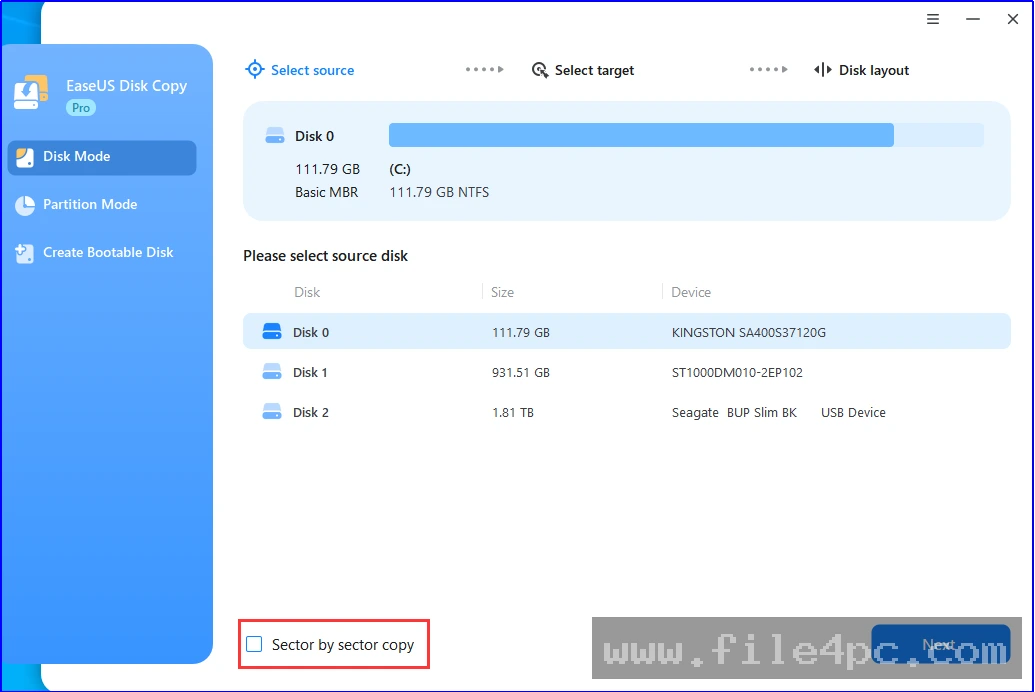
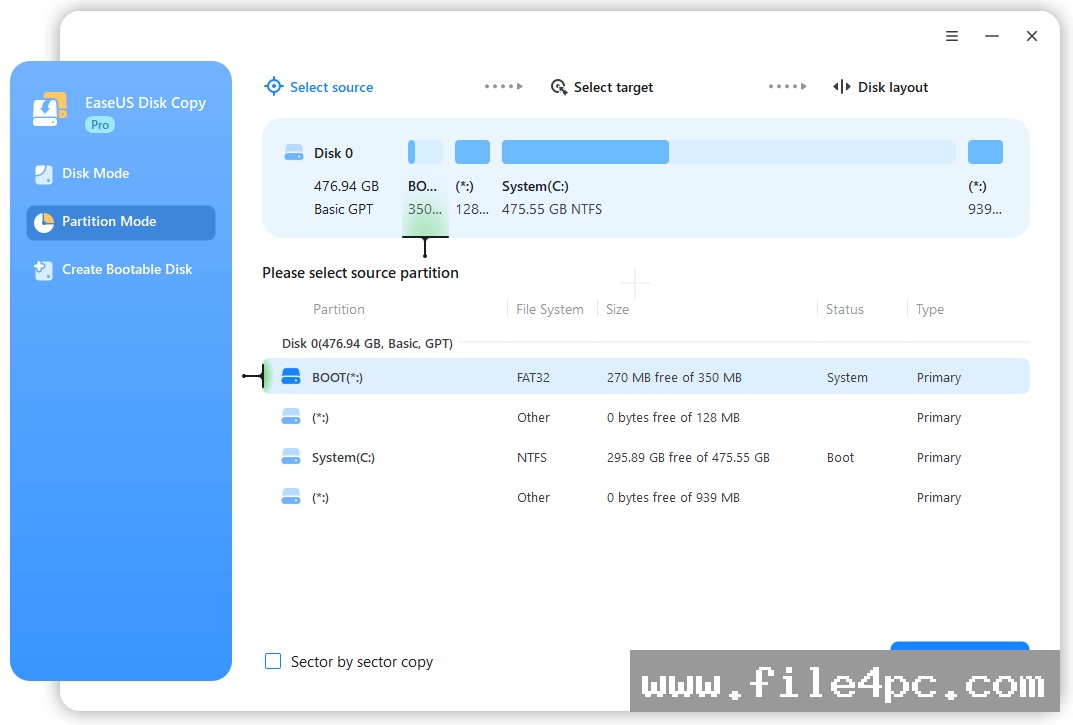
First, the user connects the new target drive to the computer using an internal slot or an external USB-to-SATA adapter. After downloading and launching the application from an official source, the user selects the preferred cloning mode, such as disk mode or partition mode.
Next, the user designates the source drive containing the current operating system and files, followed by the destination drive where the data will be copied. Before initiating the transfer, the software allows users to preview and edit the disk layout, ensuring that partitions scale correctly to the new storage size. Once the parameters are confirmed, the cloning process begins, transferring data sector by sector until completion. Finally, the user shuts down the PC, replaces the old drive with the new one, and boots up the system normally.
Your May Also Like :: Emurasoft EmEditor Professional PC Software
Benefits and Limitations
Benefits
The primary advantage of the software is its ability to save time during hardware upgrades by avoiding clean operating system installations. Its user-friendly interface makes disk cloning accessible to individuals who lack advanced IT expertise. Furthermore, its capacity to handle both minor partition adjustments and full-disk duplication provides high reliability for routine data backups.
Limitations
The application requires a paid commercial license for full professional features after the initial trial period. It is also limited exclusively to Windows operating systems, meaning cross-platform users on macOS or Linux cannot utilize it natively. Additionally, the cloning duration depends heavily on the read and write speeds of the source and destination drives, which can take considerable time when transferring multi-terabyte mechanical hard drives.
What's New
Recent software releases focus on optimizing transfer speeds for high-performance NVMe solid-state drives and expanding compatibility with recent Windows updates. Developers have also refined the partition auto-fit algorithm to handle uneven drive capacities more accurately during system migrations.
Routine maintenance updates continue to improve the stability of the WinPE bootable media generator, ensuring reliable hardware recognition on newer motherboard chipsets and secure boot configurations.
Installation and Setup
Installing the utility requires standard administrator privileges on a compatible Windows desktop environment to ensure proper system file access and disk management permissions. Users should always download the official setup package directly from the verified developer platform to maintain file integrity and security.
Run the downloaded installation file and follow the onscreen prompts to place the application on your primary drive. Upon launch, enter your valid license key to unlock advanced cloning features, or configure a bootable rescue disk using a USB flash drive if you plan to clone a live system drive outside of the active Windows environment.
Tips for Using EaseUS Disk Copy Pro PC Software
Achieving a smooth data migration involves following a few practical preparation steps:
-
Clean Up Unnecessary Files: Before starting a clone, delete temporary files and unused applications from your source drive to reduce the overall data volume and speed up the transfer time.
-
Backup Critical Data: Always keep an independent external backup of important personal documents before performing major disk modifications or cloning operations.
-
Check Target Drive Capacity: Ensure that your destination SSD or HDD has enough usable storage space to accommodate all used sectors from the source drive, especially when opting out of sector-by-sector mode.
-
Connect Directly for Speed: When possible, connect target SSDs via internal motherboard ports rather than USB adapters to maximize data transfer rates during large clones.
Modern Alternatives
Clonezilla provides a free, open-source alternative that operates via a text-based Linux environment, appealing primarily to advanced system administrators and IT professionals. Macrium Reflect offers robust backup and imaging features tailored for enterprise environments and experienced power users. Acronis Cyber Protect Home Office delivers comprehensive backup alongside integrated disk cloning capabilities for multi-layered data protection. Choosing among these alternatives depends on whether you prefer a straightforward wizard interface or advanced command-line flexibility.
Who Should Use EaseUS Disk Copy Pro PC Software?
This application serves everyday computer users looking to upgrade a slow mechanical hard drive to a modern solid-state drive without reinstalling Windows. It benefits gamers and media professionals who need to move massive game libraries or project files to larger storage volumes quickly.
Conversely, casual users who never change hardware components or upgrade storage capacities will rarely need a dedicated disk cloning utility. Similarly, enterprise system administrators managing large corporate networks may find centralized deployment tools better suited to their scaled infrastructure.
FAQ
Can I clone a larger hard drive to a smaller SSD?
Yes, as long as the total amount of used data on the source drive fits within the capacity of the target SSD, the software allows cloning to a smaller drive by ignoring empty sectors.
Do I need to reinstall Windows after cloning my drive?
No, the primary purpose of the software is to create an exact, bootable duplicate of your system drive, allowing you to swap drives and boot directly into your existing Windows environment.
Does the software support NVMe and M.2 solid-state drives?
Yes, the application supports all major consumer and enterprise drive types, including traditional SATA HDDs, modern SATA SSDs, and high-speed NVMe or M.2 storage devices.
Is an active internet connection required during cloning?
An internet connection is only necessary for software activation and license verification, while the actual disk cloning operations run locally and completely offline.
Conclusion
EaseUS Disk Copy Pro PC Software offers a dependable, user-friendly solution for Windows users aiming to upgrade their storage hardware or migrate operating systems safely. By removing the friction associated with manual system setups, it streamlines the transition to faster solid-state drives.
Evaluating your specific storage upgrade goals and hardware configurations will help clarify whether this disk cloning tool matches your workflow requirements. For anyone looking to secure their data and accelerate their PC performance with minimal hassle, it provides an efficient path forward

💬 0 Comments
✍ Leave a Comment