

Close All Windows PC Software is a specialized desktop utility designed for Windows computers to help users instantly shut down all running applications with a single click. When working with dozens of open programs, browser tabs, and background folders, ending sessions one by one can become a tedious and time-consuming chore. This utility provides a streamlined shortcut placed in the taskbar or desktop, allowing individuals to clear their workspace instantly without navigating through individual menus.
Overview
Managing an active computer session often involves opening numerous programs simultaneously. From web browsers and word processors to media players and utility tools, computer screens quickly fill with active windows during a busy workday. When it is time to step away, shut down the system, or clear the slate for a new project, closing every program individually requires repetitive clicking and keystrokes.
The application is built for everyday computer users, office workers, and power users who want a faster, cleaner way to manage their active workspace on Windows systems. Operating locally as a lightweight background helper or a quick-launch executable, it interacts directly with the operating system task manager functions to signal running programs to close. Its purpose is focused entirely on efficiency and convenience, making it a handy addition for anyone looking to speed up their daily computer shutdown routine.
Key Features
The core functionality of the utility centers around rapid task termination and customizable closing parameters.
-
One-Click Closure: The software triggers a simultaneous close command across all open applications, eliminating the need to close programs individually.
-
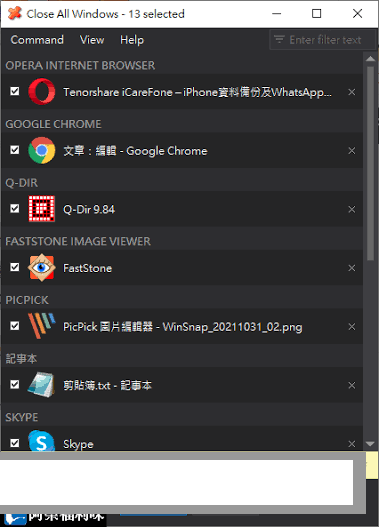
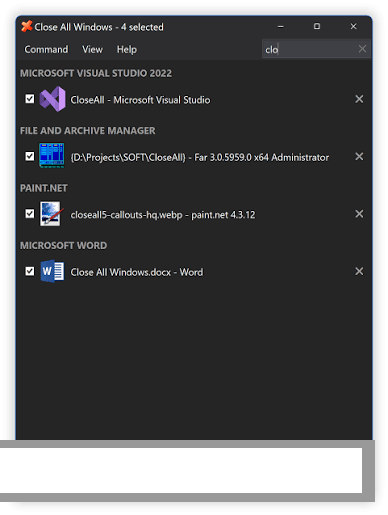
Custom Exclusion Lists: Users can configure specific programs or critical applications to be ignored during a mass-close operation, preventing accidental closure of important work.
-
Taskbar Integration: The utility can be pinned directly to the Windows taskbar for instant access whenever a clean slate is required.
-
Silent Execution Mode: Advanced command-line parameters allow automated scripts or shortcuts to execute closures without displaying graphical prompts.
-
Prompt for Unsaved Changes: The program respects standard application prompts, giving users a chance to save open documents before termination.
How Close All Windows PC Software Works
Operating the utility follows an exceptionally straightforward workflow designed to require minimal user configuration.
First, the user obtains the installation package or portable executable from the official publisher website and places it on their local storage drive. Once set up, the program creates a convenient shortcut on the desktop or system tray. When a user wants to close all active programs, they simply click the application icon.
The utility scans the active session for running graphical applications and sends standard close messages to each program window, mirroring the action of clicking the close button on every individual window. If any application has unsaved data, that specific program will typically display its standard save prompt, allowing the user to safeguard their work before the process completes. Users should always save important documents before triggering a mass-close utility to avoid accidental data loss if a program crashes or closes forcefully.
Benefits and Limitations
Benefits
The primary advantage of the software is the significant time saved when wrapping up a computer session. It removes the friction of clicking through multiple application windows at the end of the day. Furthermore, its lightweight design ensures it consumes virtually no system resources while running in the background or sitting idle on the taskbar.
Limitations
Despite its convenience, the application has distinct boundaries. It is a specialized, single-purpose tool, meaning it does not perform deep system optimization, registry cleaning, or malware scanning. Additionally, relying on a mass-close tool can occasionally bypass routine closing workflows in poorly coded applications, leading to unprompted data closures if files are left unsaved. It also requires a Windows operating environment and is not designed for mobile or alternative desktop platforms.
What's New
Development updates for lightweight productivity utilities typically focus on enhancing compatibility with newer Windows operating system builds and refining stability. Recent software revisions have concentrated on improving how the utility handles modern Windows Store applications and background processes without triggering system permission errors.
Developers also maintain regular code updates to ensure smooth execution on updated Windows 10 and Windows 11 environments. These ongoing maintenance adjustments help keep the utility reliable and responsive during everyday desktop use.
Your May Also Like :: Clip Studio Paint EX PC Software
Installation and Setup
Setting up the utility on a Windows computer involves a simple and quick installation process. Users should always download the setup package or portable version directly from the official NTWind developer website to ensure file authenticity and safety.
Run the downloaded installer or extract the portable package to your preferred directory. Follow the simple on-screen prompts if using the installer version to place shortcuts on your desktop or start menu. Because the utility operates with standard user permissions, no complex administrative configurations are required for basic usage. Users can immediately pin the shortcut to their taskbar for quick, one-click access during daily computer sessions.
Tips for Using Close All Windows PC Software
To get the most efficient results from your workspace management routine, keep several practical guidelines in mind:
-
Configure Exclusions: Set up exclusion rules for important chat apps or background tools that you prefer to keep running throughout the day.
-
Pin to Taskbar: Place the program shortcut directly on your Windows taskbar so it is always within reach when you need to clear your screen quickly.
-
Save Files Regularly: Always save active documents before clicking the close utility to ensure no unsaved progress is lost during mass application closures.
-
Explore Portable Mode: Consider using the portable version if you prefer running the utility from a USB drive across multiple different workstations.
Modern Alternatives
Several alternative utilities exist for users seeking different approaches to desktop workspace management. Alt-Tab Terminator provides an advanced task switcher with built-in window closing capabilities and visual previews. Task Manager offers a native Windows solution for force-closing frozen or stubborn applications, though it requires more navigation than a one-click shortcut.
Other users rely on custom PowerShell scripts or desktop shortcuts configured with native Windows commands to automate closures. Choosing between these alternatives depends on whether you prefer a dedicated one-click utility, an advanced task switcher, or built-in system tools.
Who Should Use Close All Windows PC Software?
This software is well-suited for office workers, multitasking professionals, and home users who frequently juggle dozens of open windows and want a fast way to clear their workspace at the end of the day. It benefits individuals who value efficiency and want a simple shortcut to streamline their computer shutdown routine.
Conversely, system administrators looking for enterprise-grade remote server management tools or advanced script automation suites will find more specialized administration software appropriate. Similarly, casual users who rarely have more than two or three windows open at once may not find a dedicated mass-closing utility necessary.
FAQ
Is Close All Windows compatible with Windows 11?
Yes, the application is designed to run smoothly on modern Windows environments, including both Windows 10 and Windows 11 operating systems.
Will the software close my background system tray icons?
No, the utility targets active graphical windows and open applications, typically leaving background system tray utilities and core system services untouched unless specifically configured otherwise.
Can I prevent certain programs from closing automatically?
Yes, the application allows users to configure exception lists so that designated programs remain open during a mass-close operation.
Is there a portable version available?
Yes, the developer often provides a portable edition that can be run directly without requiring a traditional installation wizard.
Conclusion
Close All Windows PC Software provides a fast, lightweight solution for clearing cluttered desktops and streamlining the end of a computer session. By replacing repetitive manual closing clicks with a single shortcut, it saves time and simplifies everyday multitasking workflows.
Evaluating your daily workspace habits will help determine whether this utility fits your routine. For anyone looking for a dependable, single-purpose tool to instantly shut down active programs on Windows, this application offers straightforward convenience.

💬 0 Comments
✍ Leave a Comment