

Process Explorer PC Software is an advanced system monitoring and process management utility for Windows that far surpasses the capabilities of the standard built-in Windows Task Manager. Developed originally by Sysinternals and later acquired by Microsoft, it provides an in-depth, real-time look at every active process, DLL file, handle, and background service running on your operating system. System administrators, software developers, and IT security specialists rely on this utility to trace file locks, identify resource hogs, analyze background dependencies, and detect malicious processes that attempt to disguise themselves under legitimate system names.
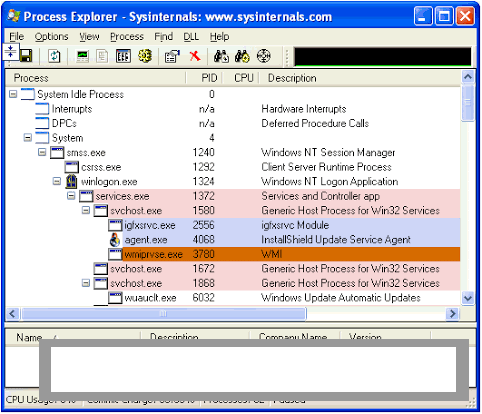
Unlike basic task management tools that only show high-level CPU and memory percentages, this application presents active processes in a dynamic hierarchical tree structure. This visual arrangement makes it effortless to identify parent-child process relationships, such as determining which specific web browser tab spawned a frozen process or tracking down a background script launched by an unknown launcher. The tool operates as a portable application directly on your local machine, requiring no intrusive installation or background services.
Microsoft maintains the utility actively as part of the official Sysinternals Suite. Because it is completely free, lightweight, and lightweight on system resources, it remains a standard diagnostic tool for diagnosing complex Windows operating system performance issues and security anomalies.
Your May Also Like :: DxO ViewPoint PC Software download
Key Features
The utility contains a comprehensive set of diagnostic and forensic capabilities engineered to give complete transparency into active system operations.
Hierarchical Process Tree View Active processes are organized in an expandable tree hierarchy. This parent-child mapping helps you see exactly which executable initiated a secondary background process, allowing you to trace background tasks back to their source application.
DLL and Handle Sub-Panels The workspace interface splits into two main sections: the top pane displays active processes, while the lower pane reveals either loaded DLL files or opened system handles. If a file or folder refuses to delete because a background application has locked it, you can search handles directly to pinpoint the exact process causing the lock and release it.
Integrated VirusTotal Malware Scanning Security analysis is built directly into the process list. You can enable automatic file hash checking against the VirusTotal database, which instantly displays a detection score for every active executable. This feature helps you spot suspicious, unsigned, or malicious files running in the background without needing to upload files manually through a web browser.
Target Window Drag Tool The toolbar includes a target icon that you can drag and drop onto any open window, dialog box, or error message on your screen. The software immediately isolates and highlights the corresponding executable in the process list, identifying mystery popups and background adware sources.
Full Task Manager Replacement Mode For users who prefer deeper inspection during daily troubleshooting, the application includes an option to replace the default Windows Task Manager. Selecting this option redirects shortcut commands like Ctrl+Shift+Esc to launch Process Explorer instead of the standard operating system monitor.
How Process Explorer PC Software Works
The operational model relies on direct querying of the Windows kernel API, delivering real-time telemetry on system threads, handles, and memory allocations.
When you run the executable, the top window displays a list of active processes using a color-coded interface. Green highlights signify newly launched processes, red indicates terminating tasks, blue represents standard user applications, and pink marks background Windows services.
To investigate a locked file or folder, you open the Find menu and select Find Handle or DLL. Type the name of the locked file into the search box, and the tool returns every process currently holding an active lock on that resource. Selecting the result highlights the process in the main window, where you can inspect its properties or close the specific handle.
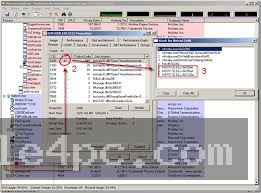
To inspect a specific process in detail, double-click its entry in the main list. This opens a comprehensive multi-tab properties window showing executable paths, digital signature verifications, environment variables, GPU memory usage, active threads, and security permissions. If a process appears unresponsive or suspicious, you can choose to suspend its threads temporarily, restart it, or terminate the entire process tree simultaneously.
Benefits and Limitations
Weighing the utility's deep diagnostic capabilities against its visual complexity helps clarify its role in modern system maintenance.
Benefits
The most significant benefit is absolute transparency. It provides complete visibility into internal Windows operations, allowing users to uncover hidden background tasks, trace malware hooks, and release locked files without needing to reboot the system. The built-in VirusTotal integration adds an essential layer of security analysis. Furthermore, the tool is completely free, portable, and maintained directly by Microsoft Sysinternals engineers.
Limitations
The primary restriction is the visual learning curve for casual users. The sheer volume of technical data, hex codes, and handle listings can be overwhelming if you only need to close a frozen application. Additionally, because the software grants high-level control over core Windows kernel processes, forcibly terminating critical system handles or root Windows services like lsass.exe or csrss.exe can cause immediate system crashes or blue screen errors.
What's New
Microsoft Sysinternals maintains a steady update path for the application, focusing on compatibility with modern Windows 11 builds, security enhancements, and ARM64 processor support.
Key improvements in recent versions include:
-
Native ARM64 architecture support, ensuring high performance on modern Snapdragon and ARM-powered Windows laptops.
-
Refined VirusTotal API integrations for faster, more reliable hash checking without hitting rate limits.
-
Enhanced thread stack inspection capabilities and dark mode interface refinements.
-
Updated support for modern multi-core CPU architectures, including Intel Hybrid performance and efficiency core tracking.
Installation and Setup
Using the software requires no formal installation procedure because it is delivered as a portable utility.
You download the official ZIP archive directly from Microsoft Learn (formerly Sysinternals). Extract the folder contents to your preferred directory or a portable USB flash drive. Inside, you will find three executable options: procexp.exe for standard 32-bit systems, procexp64.exe for 64-bit Windows installations, and procexp64a.exe for ARM64 hardware.
To unlock full diagnostic capabilities, right-click the appropriate executable and select Run as Administrator. Running with elevated administrative privileges is necessary to inspect system-level handles, view kernel threads, and verify digital signatures for protected background services.
Tips for Using Process Explorer PC Software
Always verify digital signatures when investigating unknown processes. Double-click any executable, navigate to the Image tab, and click the Verify button. If an executable claims to be a core Windows file but lacks a valid Microsoft digital signature, it warrants further security investigation.
Customize your color settings to make reading the process list easier. Opening Options and selecting Configure Colors allows you to assign custom highlight colors to packed images, relocated DLLs, and suspended threads.
Use the Column Selection tool to display GPU memory and dedicated disk activity. Right-clicking the table header and selecting Select Columns allows you to add detailed metrics like Private Bytes, Working Set, GPU Dedicated Memory, and I/O Reads directly to your primary view.
Modern Alternatives
While this Sysinternals tool is considered a industry standard for deep inspection, several alternatives offer different approaches to system management.
Process Hacker (now continued as System Informer) is an open-source system monitoring application. It offers a very similar feature set, including process trees, handle searching, and network connection tracking, but includes additional memory editing and kernel-driver management tools that some advanced users prefer.
Standard Windows Task Manager is built into every copy of Windows 10 and 11. It features a modern, user-friendly interface with startup app management, performance graphs, and app history. While excellent for quick app termination, it lacks handle searching, VirusTotal integration, and granular thread analysis.
Process Monitor (ProcMon) is another Microsoft Sysinternals utility. While Process Explorer provides a real-time snapshot of active processes and handles, Process Monitor captures a real-time log of file system, registry, and thread activity across the entire OS, making them complementary tools rather than direct substitutes.
Who Should Use Process Explorer PC Software?
This utility is ideal for IT administrators, cybersecurity analysts, helpdesk technicians, and software developers who need deep technical insight into Windows operations. If you need to trace why a file is locked, investigate unexpected high CPU usage, verify process signatures, or analyze background services, it is an essential tool.
However, casual PC users who simply want to monitor basic memory usage or close a frozen game will likely find the built-in Windows Task Manager simpler and safer to use for daily tasks.
FAQ
Is Process Explorer PC Software safe to use?
Yes, it is a completely official, safe utility published directly by Microsoft Sysinternals. However, terminating critical core Windows processes can cause your operating system to crash or restart, so caution is advised when ending unknown tasks.
Can this application replace the standard Windows Task Manager?
Yes. Under the Options menu, you can select Replace Task Manager. Once enabled, pressing Ctrl+Shift+Esc or right-clicking the taskbar will automatically launch Process Explorer instead of the default Windows Task Manager.
Why do some processes appear in red or green?
The software uses dynamic color highlights to show real-time changes. Green highlights indicate a process that has just started, while red highlights indicate a process that has just been terminated or closed.
How does the VirusTotal integration work?
When enabled under Options > VirusTotal.com, the application generates a cryptographic hash of each running executable and sends it to VirusTotal's database. It then displays a column showing how many security engines flagged the file as malicious without uploading the entire file content.
Conclusion
Process Explorer PC Software remains an indispensable diagnostic utility for inspecting, analyzing, and troubleshooting Microsoft Windows operating systems. By providing an organized process hierarchy alongside loaded DLL lists, handle searching, and automated VirusTotal malware scans, it offers an unmatched level of transparency into background system activity.
While its detailed technical presentation requires a basic understanding of Windows architecture, its portability, zero cost, and powerful feature set make it an essential addition to any IT professional's toolkit. For anyone seeking total clarity over what is running on their PC, it delivers an authoritative operational workspace.
💬 0 Comments
✍ Leave a Comment