Overview
GoodSync PC Software is a file synchronization and backup program developed by Siber Systems. It provides a direct way to mirror, move, or secure data across multiple devices. Instead of forcing users into a specific monthly cloud subscription, this tool connects existing storage locations. You can link a local hard drive to a network-attached storage device or connect a laptop directly to cloud providers like Amazon S3 or Google Drive.
Siber Systems has actively maintained the software since its initial release in 2006. As of late 2026, the application remains in active development, currently sitting in the version 12 lifecycle. It targets users who need strict control over where their files live. While everyday consumers might rely on simple drag-and-drop methods, professionals use this application to manage massive data sets across different operating systems.
Key Features
The application includes several specialized tools for data management. Rather than simply copying files blindly, it uses intelligent scanning to determine exactly what needs to move.
Two-Way File Synchronization
This feature keeps two separate folders perfectly identical. If you add a file to your office computer, the software copies it to your home laptop. If you delete a document at home, the program removes it from the office machine during the next sync. This ensures you always have the most current working files on both ends.
Block-Level Data Transfer
When you edit a massive video file or a large database, moving the entire file over a network takes time. Block-level transfer solves this problem. The software analyzes the file, identifies the specific data blocks that changed, and transmits only those small pieces. This significantly reduces network load and speeds up the backup process.
Direct Device-to-Device Connections
Through a protocol called GoodSync Connect, the software can link two computers directly over the internet. You do not need to upload files to a central server first. The data travels straight from your laptop to your desktop, keeping your private information away from third-party storage companies.
End-to-End Client Encryption
Data security is a major concern when storing files online. The application provides client-side encryption. This means it encrypts your files on your computer before sending them to a server or cloud provider. Even if a cloud storage company suffers a data breach, your files remain unreadable without your private password.
How GoodSync PC Software Works
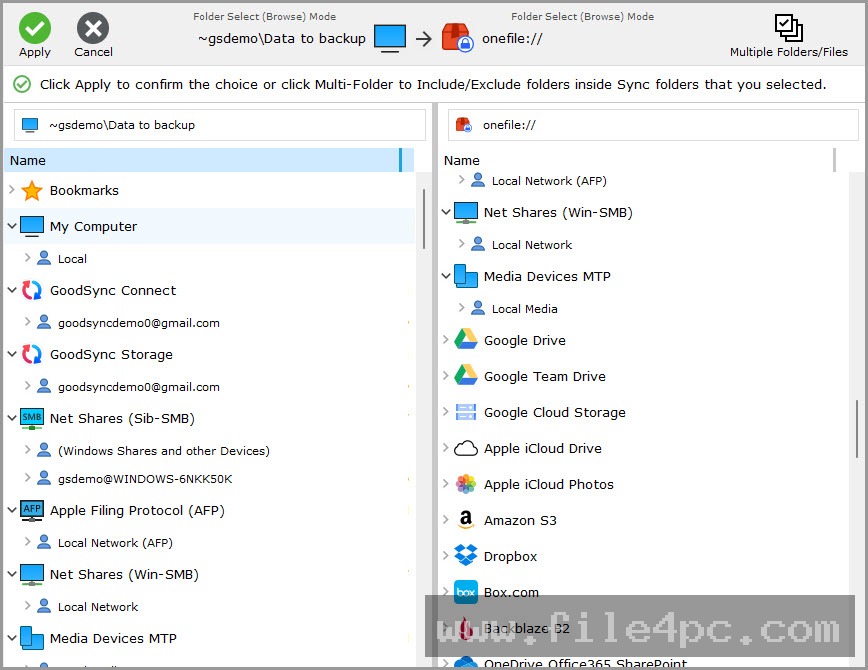
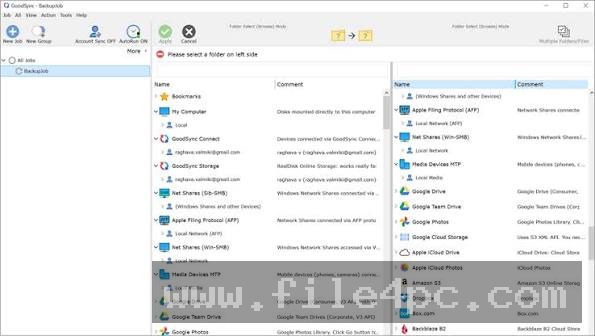
The core workflow relies on a concept of left and right folders. You select a source location on one side and a destination location on the other.
First, you choose a job type. A backup job moves files in one direction only. A sync job moves files in both directions to match both folders.
Next, you click the analyze button. The software scans both locations and builds a visual tree of your files. It shows you exactly what will happen before any data actually moves. You can see which files will copy, which will delete, and which will overwrite older versions.
If the proposed changes look correct, you click the sync button. The software executes the plan and transfers the files. Once you confirm the setup works properly, you can configure automation rules. You might tell the program to run silently in the background every night at midnight or whenever it detects a file change.
Be careful when setting up two-way synchronization for the first time. If you link a folder full of files to a completely empty folder, a misconfigured sync job might attempt to delete your original files to match the empty side. Always use the analyze step first and carefully review the proposed file deletions.
Your May Also Like :: Gillmeister Automatic PDF Processor PC Software
Benefits and Limitations
Understanding both the strengths and weaknesses of the application helps you decide if it fits your workflow.
Benefits
The biggest advantage is storage independence. You are not locked into a single ecosystem. You can back up to a local hard drive today and switch to an external cloud provider tomorrow using the exact same interface. The software also handles network interruptions gracefully. If your internet connection drops during a massive file transfer, the program resumes exactly where it left off once the connection returns. It operates across multiple platforms, offering compatibility with Windows, Mac, Linux, Android, and iOS devices.
Limitations
The software carries a noticeable learning curve. The interface is highly functional but feels slightly dated and complex for beginners. It presents many technical options that might overwhelm casual users. Additionally, licensing is tied to individual machines rather than a single user account. If you want to run the program on a desktop, a laptop, and a network server, you must navigate their specific licensing requirements for each device type. Free versions exist but come with strict limitations on job creation, automation, and total file counts.
What's New
Siber Systems regularly pushes updates to the version 12 release branch. In the latter half of 2026, the 12.11 update series introduced several meaningful adjustments.
The developers added a visual sync tree for unattended jobs, allowing users to see folder counters and file progress even when the software runs silently in the background. The update also integrated direct support for Wasabi S3 and MEGA S4 storage protocols. Network connection stability received attention, specifically regarding UPNP detection for direct computer-to-computer connections. The developers continue to patch security vulnerabilities, migrate to newer Java and SDK environments for Android applications, and optimize background resource usage for modern hardware.
Installation and Setup
You should only download the installer from the official Siber Systems website. Third-party download portals often bundle unwanted toolbars or host outdated versions.
Run the installer and follow the standard prompts. During setup, the software will ask if you want to create a GoodSync Connect account. This account is necessary if you plan to link computers directly over the internet without using cloud storage.
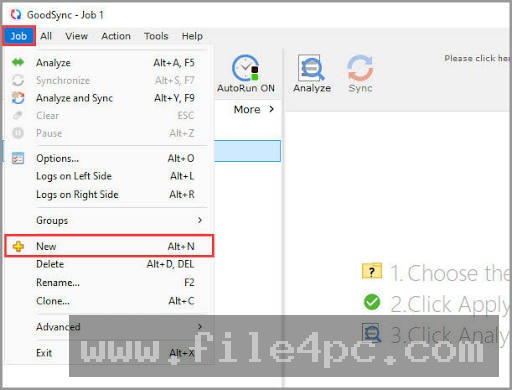
When setting up your first job, test the process with a dummy folder. Create a folder with a few test text files and link it to an empty destination. Run the analyze and sync commands to understand how the software behaves. Do not test your first automated job on your critical tax documents or irreplaceable family photos.
Tips for Using GoodSync PC Software
You can improve your experience by utilizing specific settings hidden in the job options menu.
Use the filtering system to ignore unnecessary files. Temporary system files, hidden cache folders, and operating system thumbnails can clog up your backup drives. You can configure the job to exclude these specific file types automatically.
Enable the file history feature within the software options. If the program overwrites or deletes a file during a sync, it can save a copy of the old version in a hidden folder. This provides a safety net if you accidentally delete a document and then the software syncs that deletion to your backup drive.
Set bandwidth limits if you work from home. Unrestricted uploads to cloud storage can consume your entire internet connection, making web browsing incredibly slow for everyone else on the network.
Modern Alternatives
Several other applications handle file redundancy, though they operate quite differently.
FreeFileSync is a popular open-source alternative for local and network backups. It provides a visual folder comparison similar to Siber Systems' software. However, it lacks built-in direct internet synchronization and relies heavily on your existing local network infrastructure.
Syncthing offers an entirely decentralized approach to file synchronization. It connects devices directly using peer-to-peer technology. It is completely free and highly secure but lacks traditional cloud storage integration.
Native desktop clients for Google Drive or Microsoft OneDrive provide a much simpler user experience for casual consumers. These apps run quietly in the background and require almost no setup, but they restrict you to their specific paid storage ecosystems.
Who Should Use GoodSync PC Software?
This application fits best with professionals, freelancers, and small business owners who manage large volumes of data. Photographers who need to push daily raw image files to a network drive and a cloud server simultaneously will find the automation tools highly valuable. System administrators can use it to maintain identical server directories across different physical locations.
Casual computer users who only want to back up a single folder of word documents might find this utility overly complex. A basic drag-and-drop routine or a simple cloud drive app usually satisfies basic consumer needs without requiring advanced job configurations.
FAQ
What happens if I delete a file during a two-way sync?
If you configure a true two-way sync job, deleting a file on your local computer tells the software to delete the matching file on the destination drive during the next run. You can change this behavior by using a one-way backup job instead.
Is GoodSync PC Software free to use?
The developer offers a free version, but it heavily restricts the software's capabilities. It limits the number of jobs you can create, restricts unattended automation, and caps the number of files you can process. Professional features require a paid license.
Does the software work without an internet connection?
Yes. You can use the program completely offline to mirror files between internal hard drives, external USB flash drives, or local network servers.
Can I encrypt my files before sending them to the cloud?
Yes. The software includes client-side AES encryption. You set a password within the job options, and the program scrambles your data before it leaves your computer, ensuring the cloud provider cannot read your files.
Will it copy locked operating system files?
The software utilizes the Volume Shadow Copy Service on Windows machines. This allows it to safely copy files that are currently open or locked by other applications without interrupting your active work.
Conclusion
Data management requires reliable tools that respect user control. This application provides a robust environment for securing, moving, and mirroring files across almost any storage medium available today. By ignoring restrictive cloud ecosystems, it gives users the freedom to build a backup strategy that fits their specific hardware and network capabilities.
GoodSync PC Software remains a powerful option for anyone who needs strict oversight of their digital assets. While the learning curve requires a bit of patience, the resulting automation and security benefits justify the initial setup time. Testing the workflow with non-critical files will quickly build your confidence in managing your most important data.
💬 0 Comments
✍ Leave a Comment