
Setup Microsoft Power Automate PC Software opens access to Microsoft's desktop robotic process automation (RPA) platform, Power Automate for desktop. Built directly into Windows 11 and available as a free standalone download for Windows 10, the application allows users to automate repetitive, rules-based computer tasks. Instead of spending hours manually copying spreadsheet data, downloading email attachments, filling out web forms, or renaming local files, users can build automated desktop flows using a visual drag-and-drop designer.
Operating locally on desktop environments while syncing flow definitions to the Microsoft Power Platform cloud, the software bridges legacy desktop applications with modern web services. It serves office administrators, financial analysts, data entry teams, and software developers looking to streamline daily workflows without writing complex code.
Microsoft actively maintains and updates the desktop client on a monthly cadence, expanding built-in action libraries, enhancing web browser extensions, and refining artificial intelligence integration features across modern Windows operating systems.
Key Features
The application provides a comprehensive collection of desktop automation building blocks, screen recording tools, and enterprise cloud connections.
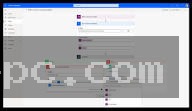
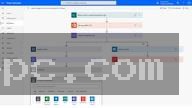
Visual Drag-and-Drop Flow Designer The core development workspace features hundreds of pre-built automation actions organized into logical categories. Users can assemble complex workflows by dragging actions for file management, Excel manipulation, web scraping, system registry edits, and database connections directly onto an interactive canvas.
Desktop and Web UI Recorders For users who prefer not to build workflows step by step, the software includes intelligent UI recorders. Clicking record allows you to perform mouse movements, button clicks, and keyboard strokes across desktop software or web browsers. The recorder automatically translates those physical UI actions into editable automation steps.
Native Microsoft Excel and File Automation Handling spreadsheet data and local directory operations is a primary strength. The desktop agent includes dedicated actions to launch Excel workbooks, read data ranges, insert calculated formulas, run macros, filter tables, and export structured reports automatically.
Web Automation and Browser Extension Integration By pairing the desktop application with official browser extensions (available for Microsoft Edge, Google Chrome, and Mozilla Firefox), the tool can navigate web pages, fill out online forms, extract HTML table data, download files, and handle multi-page web scraping routines.
Unattended and Attended Execution Modes Workflows can run in two operational modes. Attended flows execute directly on an active user desktop, allowing employees to trigger automations manually. Unattended flows run silently in the background on remote virtual machines or servers without requiring human intervention, ideal for scheduled batch processing.
How Setup Microsoft Power Automate PC Software Works
Setting up and running desktop automations follows a clear step-by-step process from client installation to flow execution.
To begin, launch the installed application and sign in with your Microsoft account (either a free personal account or an enterprise Microsoft 365 work account). Upon signing in, the main console opens, displaying your local flow library and cloud environment settings.
Next, click New Flow to open the visual designer window. From the action sidebar on the left, drag desired building blocks onto the central workspace canvas. For instance, to process incoming email attachments, add an action to launch Outlook, read unread messages, extract attached files, and save them into a specific local folder.
Once your logic steps are configured, test your flow using the built-in debugger. You can step through individual actions line by line, inspect variable values in real time, and adjust delays or error-handling rules. When satisfied, save the flow to run it on demand or configure schedule triggers via the Power Automate cloud portal.
Your May Also Like :: PilotEdit Pro PC Software
Benefits and Limitations
Evaluating the platform involves weighing its low-code productivity gains against its operational boundaries.
Benefits
The most prominent advantage is accessibility. The visual interface enables non-technical business professionals to automate complex desktop procedures without requiring computer science backgrounds or custom programming languages. Windows 11 inclusion ensures out-of-the-box availability, while free personal Microsoft account support makes desktop automation available at zero initial cost. Furthermore, native integration with Microsoft 365 cloud services simplifies data transfer between local files and SharePoint or OneDrive.
Limitations
The primary restriction relates to execution permissions and UI sensitivity. Automations built using UI recording rely on screen elements; unexpected pop-up windows, altered display resolutions, or modified software interfaces can cause desktop flows to fail unless robust error-handling rules are configured. Additionally, while basic desktop flow creation is free, advanced features like unattended background execution, enterprise governance, and sharing flows across organization teams require paid Power Automate per-user licenses.
What's New
Microsoft maintains an active monthly update cycle for the desktop runtime client, ensuring ongoing feature expansion and bug fixes.
Key recent updates across release builds include:
-
Expanded AI Actions: Deeper integration with Microsoft Copilot and AI Builder actions, allowing desktop flows to summarize text, extract data from PDF invoices, and process unstructured documents.
-
Refined Selector Engine: Upgraded UI element selector tools that improve screen element targeting on high-DPI displays and complex web interfaces.
-
Enhanced Excel Action Speeds: Optimized background processing for large Excel workbooks, reducing execution times during bulk data operations.
-
Improved Cloud Machine Connectivity: Simplified setup routines for connecting local PCs to cloud environments for unattended flow execution.
Installation and Setup
Getting the application running on a Windows PC involves a simple setup routine.
-
On Windows 11, search for Power Automate in the Start Menu, as it comes pre-installed. On Windows 10, download the official installer directly from the Microsoft Power Automate portal or the Microsoft Store.
-
Run the setup package (
PowerAutomateSetup.exe) and accept the software licensing terms. -
Allow the wizard to install required runtime dependencies, including the Power Automate machine runtime service.
-
Launch the application and sign in using your Microsoft account.
-
Install the official Power Automate web extension in your primary web browser (Edge, Chrome, or Firefox) when prompted to enable web automation capabilities.
Tips for Using Setup Microsoft Power Automate PC Software
Incorporate robust error-handling rules into every desktop flow. Using "On Error" block configurations ensures that if a web page fails to load or a file is missing, the automation retries the step or logs an error report rather than halting unexpectedly.
Utilize variables to store dynamic file paths and folder locations. Hardcoding absolute file paths (such as specific user profile directories) can break automations if the flow is moved to a different computer or user account.
Keep browser extensions updated and ensure display scaling settings remain consistent. Maintaining a fixed display scaling percentage (such as 100% or 125%) across desktop monitors prevents UI element targeting offsets during automated mouse clicks.
Modern Alternatives
Depending on whether your team requires open-source desktop scripting, enterprise RPA suites, or web-only integrations, several alternatives exist.
AutoHotkey (AHK) is a free, open-source custom scripting language for Windows. It provides fast, lightweight desktop automation and key remapping for advanced users comfortable writing code scripts, though it lacks a visual drag-and-drop designer.
UiPath Community Edition is an enterprise-grade robotic process automation platform. It offers advanced document processing, computer vision for virtual desktop environments (Citrix), and extensive enterprise orchestrator tools, though its full suite carries a steeper learning curve.
Zapier and Make (Integromat) are cloud-first automation platforms. While they excel at connecting web-based APIs and SaaS applications without local software installations, they cannot interact directly with legacy desktop applications or local file systems like Power Automate for desktop does.
Who Should Use Setup Microsoft Power Automate PC Software?
This utility software is ideal for business analysts, administrative staff, finance personnel, IT professionals, and digital creators who want to automate repetitive Windows desktop operations. If you spend significant time manually moving data between spreadsheets, web portals, and local files, it provides an accessible automation engine.
However, organizations seeking non-Windows OS support (macOS or Linux desktop automation) or developers seeking pure code-based automation tools may prefer cross-platform scripting environments like Python (Selenium/PyAutoGUI) or AutoHotkey.
FAQ
Is Setup Microsoft Power Automate PC Software free?
Yes. The desktop client (Power Automate for desktop) is free for individual Windows users signed in with a Microsoft account. Advanced enterprise features, flow sharing, and unattended execution require paid subscription tiers.
Which operating systems support the desktop application?
The application is supported on Windows 11 and Windows 10 (64-bit editions) as well as supported Windows Server builds.
Can the software run when the PC is locked or logged off?
Attended flows require an active, unlocked Windows session. Running automations on a locked or logged-off computer requires an Unattended RPA license and machine configuration setup.
Do I need programming experience to build automations?
No. The platform is designed as a low-code tool featuring a drag-and-drop workflow designer and guided desktop/web recorders.
Conclusion
Setup Microsoft Power Automate PC Software offers a practical, low-code solution for eliminating repetitive desktop tasks and streamlining business workflows on Windows PCs. By combining visual drag-and-drop flow building with intelligent screen recorders and native Microsoft 365 integration, it makes robotic process automation accessible to everyday desktop users.
While complex enterprise scenarios demand paid licensing tiers and careful error-handling design, its zero-cost entry point for individual Windows users makes it an essential productivity tool. For anyone looking to automate routine spreadsheet work, file management, or web data entry, it provides a reliable automation platform.

💬 0 Comments
✍ Leave a Comment