

Wox Launcher PC Software is an open-source, keyboard-driven productivity launcher for Windows, macOS, and Linux that lets you open applications, search local files, run system or shell commands, and trigger custom plugins from a single floating search bar. Instead of clicking through the Start Menu, File Explorer folders, or browser bookmarks with a mouse, you press a global hotkey and type a few letters to reach what you need. Developers, writers, students, IT power users, and anyone who prefers keeping their hands on the keyboard often rely on a quick-launch bar like this to cut repetitive desktop navigation.
Maintained actively on GitHub under the Wox-launcher organization, the project evolved from its classic Windows-only v1 roots into a cross-platform native v2 architecture, reaching version 2.5.0 on November 9, 2026. It is completely free and open-source software (published under the MIT License), making it accessible on personal and workplace machines without upfront subscription fees.
Having a fast command bar ready at a keystroke saves noticeable friction when switching apps, checking clipboard history, or converting units mid-task. Still, because Wox relies on background indexing, hotkeys, and optional third-party plugins or AI integrations, setting it up thoughtfully ensures it stays responsive and secure on your PC.
Key Features
Wox Launcher PC Software pairs built-in desktop utilities with an extensible plugin architecture so one search input handles both everyday lookups and specialized workflows. Below are its main confirmed features and why each one matters in daily PC use.
Instant Application, Window, and Control Panel LaunchingTyping part of an application's name brings up matching installed programs, open windows, and on Windows, Control Panel items and tasks. You can also request a fresh application window using Ctrl+Enter, which speeds up multitasking without hunting for taskbar icons.
Your May Also Like :: VirtualBox PC Software
Fast Local File and Folder NavigationWox indexes local files and folders so you can search by filename or path and browse directories directly using the folder keyword (such as cd). Recent v2.4.x and v2.5.0 refinements also improved filename search speed, memory usage, and Quick Jump support inside file dialogs.
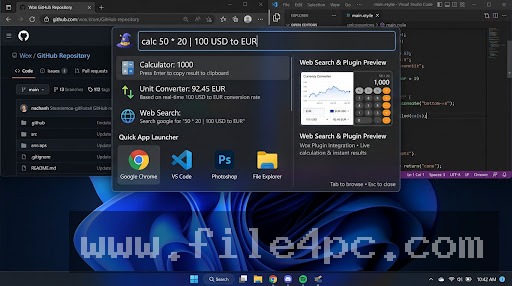
Built-In Utilities (Clipboard, Calculator, Converter, Screenshots, Notes)Out of the box, Wox includes modules for recalling copied text and images, evaluating math expressions, converting units, currencies, dates, and time zones, capturing screen areas, picking screen colors, and jotting down floating notes. Having these everyday utilities built into the search bar avoids opening separate mini-apps for quick tasks.
AI Chat, AI Commands, and Browser HelpersModern Wox v2 releases include built-in AI Chat (with conversation projects), reusable AI Commands, browser bookmark search, and open browser tab switching. Connecting your preferred models or jumping straight to an open tab keeps research and writing workflows inside one keyboard flow.
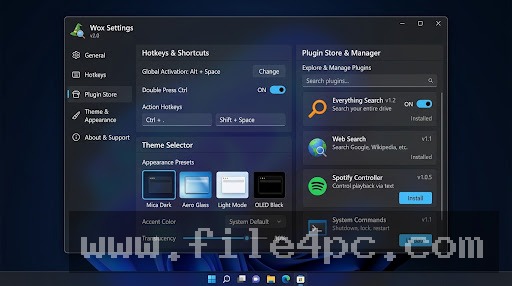
Extensible Plugin and Theme EcosystemBeyond its core modules, Wox connects to a Plugin Store and Theme Store where you can install community themes or add plugins written in Node.js, Python, or script languages (including standalone store plugins like Timer and Dictation). Custom themes and plugins let you tailor both the look of the bar and the commands it understands.
How Wox Launcher PC Software Works
Getting started with Wox Launcher PC Software requires a supported Windows PC (such as Windows 10 or Windows 11), a working network connection if you plan to download plugins, themes, or use web/AI features, and optional runtimes like Python or Node.js only if you install third-party plugins written in those languages.
Once installed, Wox runs quietly in the background with a modest memory footprint (typically around 150 MB during everyday use, according to project documentation) and listens for its activation shortcut. Pressing the hotkey opens the centered search bar over your current window.
You type a query—either a plain app or file name, a math expression, or a plugin trigger keyword—and Wox displays ranked matches with live previews where supported. Pressing Enter runs the selected action, while Shift+Enter or action menus expose secondary options such as opening a folder path.
Through the Settings panel, you can customize hotkeys, themes, file indexing limits, backup and cloud sync preferences, or switch to software rendering if a graphics driver causes display glitches.
System and plugin warning: Because Wox can execute shell commands, open files, and run community plugins written in Python or Node.js, only install plugins from trusted sources and review shell commands before pressing Enter. Also, if you configure Cloud Sync or AI Chat API keys, protect your sync folder and credentials carefully.
Benefits and Limitations
Evaluating Wox Launcher PC Software fairly means weighing its native cross-platform speed and rich built-in tools against plugin setup nuances and graphics compatibility considerations.
Benefits
Native GPU-rendered performance and open-source transparency are standout strengths. Unlike heavier Electron-based launchers, Wox v2 is built as a native application on Windows, macOS, and Linux while keeping idle memory usage modest.
Packing clipboard history, unit/currency conversion, screenshots, window layouts, notes, and plugin support into one free MIT-licensed package also eliminates the need to install half a dozen separate small utilities.
Limitations
Third-party plugins can introduce extra dependencies or version transitions. Users migrating from the older C#-based Wox v1 era to the modern v2 architecture will notice different plugin packaging and store mechanics, and Python or Node.js plugins require those runtimes on the system.
Graphics driver quirks can also occasionally affect GPU-rendered windows on certain Windows setups, which is why recent Wox builds added a dedicated software-rendering toggle and debug restart mode in Settings.
What's New
The Wox team has maintained an active release pace throughout 2026 on its v2 branch, publishing Wox v2.5.0 on November 9, 2026.
Confirmed updates across late-2026 releases include:
-
Wox v2.5.0 (November 9, 2026): Enabled plugins to open native windows and support direct interaction inside search previews, and moved Timer and Dictation into standalone plugins installable from the Wox Store.
-
Wox v2.4.9 (October 31, 2026): Added support for importing Raycast settings and plugins into Wox and organizing AI Chat conversations into projects.
-
Wox v2.4.7 & v2.4.8 (October 2026): Added
Ctrl/Cmd+Enterto open a new app window, Control Panel item search on Windows, faster lower-memory file indexing, custom screenshot folders (including OneDrive), live plugin previews, software rendering fallback, and a debug restart mode.
Installation and Setup
Before installing Wox Launcher PC Software, save any open work and decide whether you want to install it via a Windows package manager or manually from GitHub Releases. Setting up a global hotkey launcher adds a background startup entry if you enable launch-at-login.
-
Install via Windows Package Manager (
winget install -e --id Wox.Wox), Scoop (scoop install extras/wox), Chocolatey (choco install wox), or download the official Windows release package directly from[github.com/Wox-launcher/Wox/releases](https://github.com/Wox-launcher/Wox/releases)orwoxlauncher.com. -
Launch Wox once installation finishes and note or customize the default hotkey used to summon the search bar.
-
Open Settings (by typing
settingsin Wox) to adjust file search paths, startup behavior, and appearance themes. -
Browse the built-in Plugin Store if you want extra integrations such as Timer, Dictation, or developer tools.
-
Run the built-in Doctor command inside Wox to verify that system permissions, indexing, and hotkeys are configured cleanly.
Download safety warning: Always obtain Wox from woxlauncher.com, the official Wox-launcher/Wox GitHub repository, or official package managers like winget. Avoid unofficial mirrors or repackaged executables, which can contain malware or outdated builds.
Tips for Using Wox Launcher PC Software
Use the built-in Doctor command right after installation or an update. Running Doctor quickly flags hotkey conflicts, missing permissions, or indexing issues without manual guesswork.
Enable Software Rendering in Wox Settings if you ever see a blank launcher window or UI freeze after waking your PC from sleep. The developers specifically added this toggle (along with a one-click Restart Wox button) to work around stubborn GPU driver quirks on Windows.
Use Backup or Cloud Sync once you have tuned your hotkeys, themes, and plugins. Exporting your configuration makes moving your setup to another Windows, macOS, or Linux machine effortless.
Press Ctrl+Enter on an application result whenever you want a brand-new window of that program instead of switching to an already open instance.
Modern Alternatives
Depending on whether you want a Windows-only launcher, native Microsoft PowerToys integration, or a commercial utility suite, several popular alternatives exist.
Flow Launcher is a free, open-source Windows launcher that originally branched from Wox v1 and continued with a Windows-focused C#/.NET ecosystem. It offers strong Windows file search integration (such as Everything search support) and plugins, whereas Wox v2 focuses on a cross-platform native engine across Windows, macOS, and Linux.
Microsoft PowerToys Run is a free, open-source quick launcher built into Microsoft's PowerToys utility suite for Windows 10 and Windows 11. It integrates neatly with other PowerToys modules without needing a separate launcher ecosystem, though it has a smaller third-party plugin library than Wox.
Listary is a Windows file search and launcher utility designed around instant file finding and integration inside Windows Explorer and Open/Save file dialogs. It offers both a free tier and a paid Pro license, focusing more heavily on file navigation than cross-platform plugins or AI commands.
Who Should Use Wox Launcher PC Software?
Wox Launcher PC Software is a great match for keyboard-focused Windows users, developers, students, and multi-OS users who want one fast, open-source command bar for launching apps, searching files, managing clipboard history, and running plugins. If you work across Windows and macOS or Linux and want consistent shortcuts and synced settings, Wox v2 fits especially well.
You may prefer a simpler approach if you rarely use keyboard shortcuts, rely exclusively on mouse navigation via the Windows Start Menu, or prefer Microsoft's built-in PowerToys Run without installing extra plugin stores.
FAQ
What is Wox Launcher PC Software used for?
It is a keyboard-driven launcher for Windows (as well as macOS and Linux) used to open applications, search files, check clipboard history, perform calculations and conversions, and run custom plugins from one search bar.
Is Wox Launcher free and open source?
Yes, Wox is free and open-source software released under the MIT License on GitHub.
What is the latest verified version of Wox Launcher?
The Wox team released version 2.5.0 on November 9, 2026, adding interactive native plugin windows and standalone store plugins for Timer and Dictation.
Does Wox Launcher work on Windows 10 and Windows 11?
Yes, Wox supports modern 64-bit Windows systems including Windows 10 and Windows 11, and can be installed via Winget, Scoop, Chocolatey, or direct GitHub release downloads.
Conclusion
Wox Launcher PC Software gives Windows users a fast, native, open-source command bar backed by active late-2026 development, uniting app launching, file search, clipboard history, built-in utilities, AI tools, and community plugins in a single keyboard shortcut. Taking a few minutes to configure your hotkey, check the Doctor diagnostic tool, and review installed plugins keeps the launcher smooth and reliable every day.
If you want to speed up daily navigation on Windows without paying for commercial launcher subscriptions, Wox is well worth trying. If you prefer sticking strictly to built-in Windows tools or rarely use keyboard shortcuts, the standard Start Menu or Microsoft PowerToys Run will suit your habits better.

💬 0 Comments
✍ Leave a Comment